Limitations
Shopify Functions (the underlying technology Payflow is built on) come with a number of platform-level restrictions. This page documents what you may run into.
Cannot rename wallet and logo-based methods
Section titled “Cannot rename wallet and logo-based methods”US & Canada: credit card methods require Shopify Plus Shopify Plus
Section titled “US & Canada: credit card methods require Shopify Plus ”These credit card rules are imposed by Shopify (checkout and Payments by region and plan), not by Payflow.
Express checkout methods Shopify Plus
Section titled “Express checkout methods ”Shop Pay, Apple Pay, Google Pay, and PayPal also appear in the Express checkout row at the top of the Shopify checkout page (above the address form).
Hiding
Section titled “Hiding”When hiding an Express-checkout-compatible method, Payflow offers three modes:
| Mode | Behaviour | Plan requirement |
|---|---|---|
| Hide completely | Removes the method from both the Express row and the payment list | All plans |
| Hide from Express checkout only | Removes from Express row, keeps in payment list | Shopify Plus |
| Hide from payment list only | Removes from payment list, keeps in Express row | Shopify Plus |
Selective hiding (Express-only or list-only) requires Shopify Plus on all stores globally — this is not limited to US/Canada.
Reordering
Section titled “Reordering”Reordering Express checkout methods is not supported by Shopify.
Rule limits per customization type
Section titled “Rule limits per customization type”Shopify enforces the following limits per store:
- 25 active rules per customization type (Payment / Delivery / Checkout rules / Payment Instructions)
- 25 testing-mode rules per customization type
Rules created by other apps count toward the same limit. You can view all active customizations under Settings → Payments or Settings → Shipping and delivery in Shopify admin.
Draft orders — admin UI is excluded
Section titled “Draft orders — admin UI is excluded”Payflow customizations apply to both standard checkout and draft order checkouts (e.g. when a customer completes a draft order via a link). However, they do not apply when a merchant is manually creating an order inside the Shopify admin UI — that flow does not run Shopify Functions.
Fees for Cash on Delivery
Section titled “Fees for Cash on Delivery”Shopify does not natively support adding a fee to a payment method. Payflow’s COD Setup works around this by embedding the fee inside a shipping rate:
- You create a separate shipping rate that includes the COD fee (e.g. “Standard + COD fee: €3”).
- Payflow shows or hides that rate based on the selected payment method.
Because of this approach, Payflow cannot collect a partial or separate fee before the order is placed.
If prepaid shipping is weight-based but the COD surcharge depends on cart total, Shopify cannot run both on one rate. Common patterns: duplicate Weight COD rates (one per cart band, fee baked into each tier) and Payflow Subtotal amount hide rules, or parallel COD rates with Order amount tiers and Total weight hide rules — see COD fee with weight-based shipping.
No percentage-based fee on cart value
Section titled “No percentage-based fee on cart value”Merchants often ask for an extra charge as a percentage of the cart (for example “add 3% to COD orders” or a card-handling fee on prepaid checkouts). That is not possible as a true percentage line item: any similar charge must appear as a flat price on a shipping rate (or another fixed checkout price Shopify exposes), not a formula tied to subtotal or total.
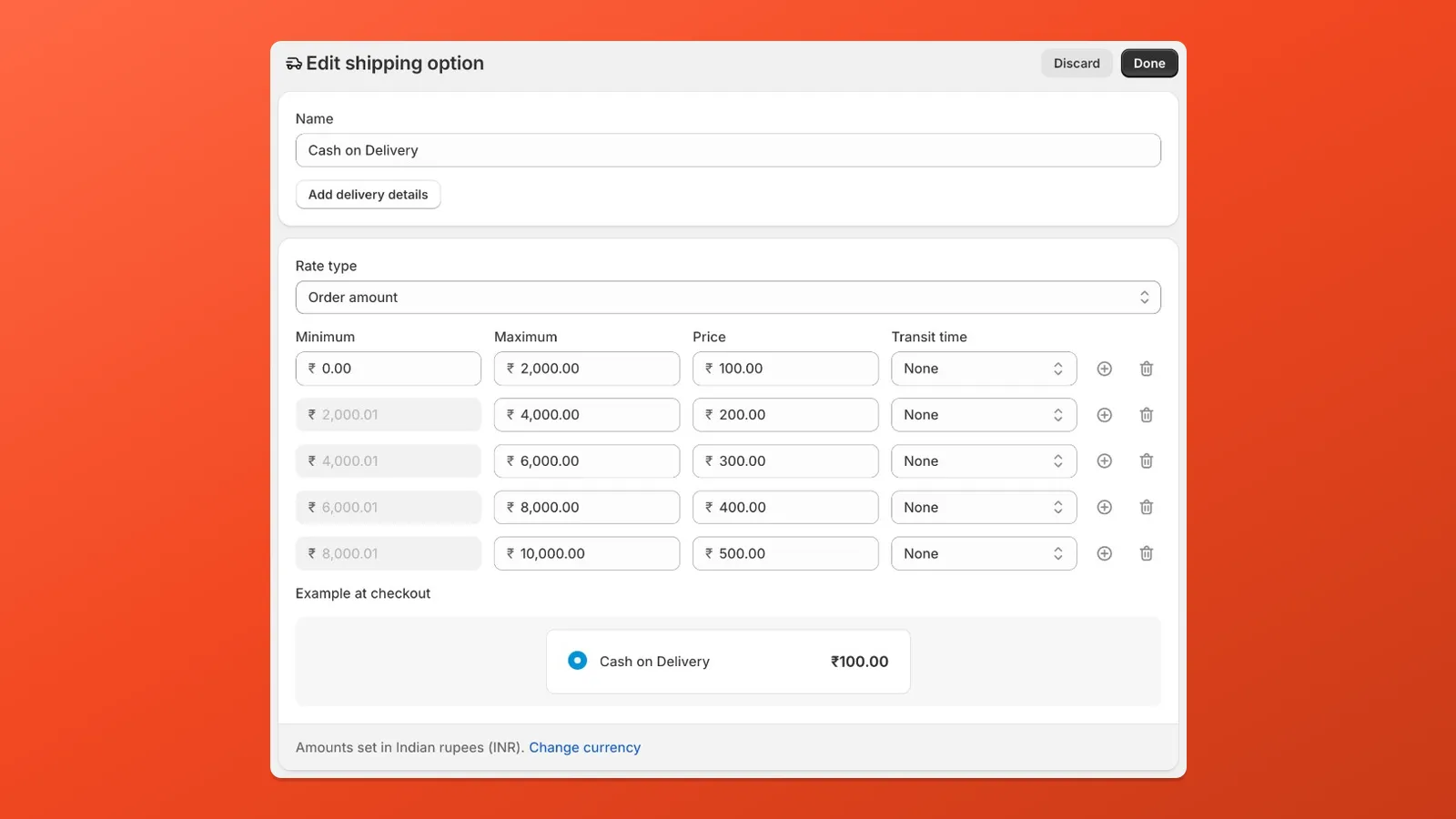
Workaround — tiered flat fees by order amount: In Shopify admin → Settings → Shipping and delivery, edit the shipping option that carries the surcharge. Set Rate type to Order amount, then add tiers: each row is a min/max cart-value band with its own flat price. Larger orders can use a higher flat fee in the next band, which approximates a rising surcharge without using percentages.
Payment-method-specific discounts
Section titled “Payment-method-specific discounts”Shopify checkout cannot apply a discount because the customer chose a particular payment method. Discount Functions run earlier in the pipeline than Payment Customization; when discounts are evaluated, the customer has not selected a payment method yet, and the discount function input does not include a selected-payment field. That ordering is a platform constraint, not something Payflow or another app can override inside Functions.
Practical pattern (works on all plans): Offer the incentive as a discount code the customer enters, and use Payflow discount conditions to hide payment methods that should not pair with that deal (for example hide Cash on Delivery once the “prepaid only” code is applied). Until the code is applied, the full payment list stays visible, so customers can compare options before they opt in. Everything stays at checkout time with no post-purchase order editing.
On Shopify Plus, a Checkout UI Extension on the payment step can read the selected payment option and call discount APIs (for example auto-applying or removing a code when the customer switches methods). That can feel smoother than asking for a code, but payment-step extensions are Plus-gated; until Shopify exposes payment choice to Discount Functions or widens extension access, hide methods when a discount is active remains the pragmatic approach for Basic, Shopify, and Advanced stores.
Inventory-based conditions not available
Section titled “Inventory-based conditions not available”inventoryQuantity is not exposed in any Shopify Function input, so it is not possible to build conditions based on stock levels (e.g. “hide COD if any item is low stock”).
OTP or phone verification at checkout
Section titled “OTP or phone verification at checkout”Payflow cannot add OTP, SMS verification, or phone verification to checkout. Shopify Functions do not have access to send messages or block checkout submission — this capability is outside what any Function-based app can provide.
10 KB data limit per customization
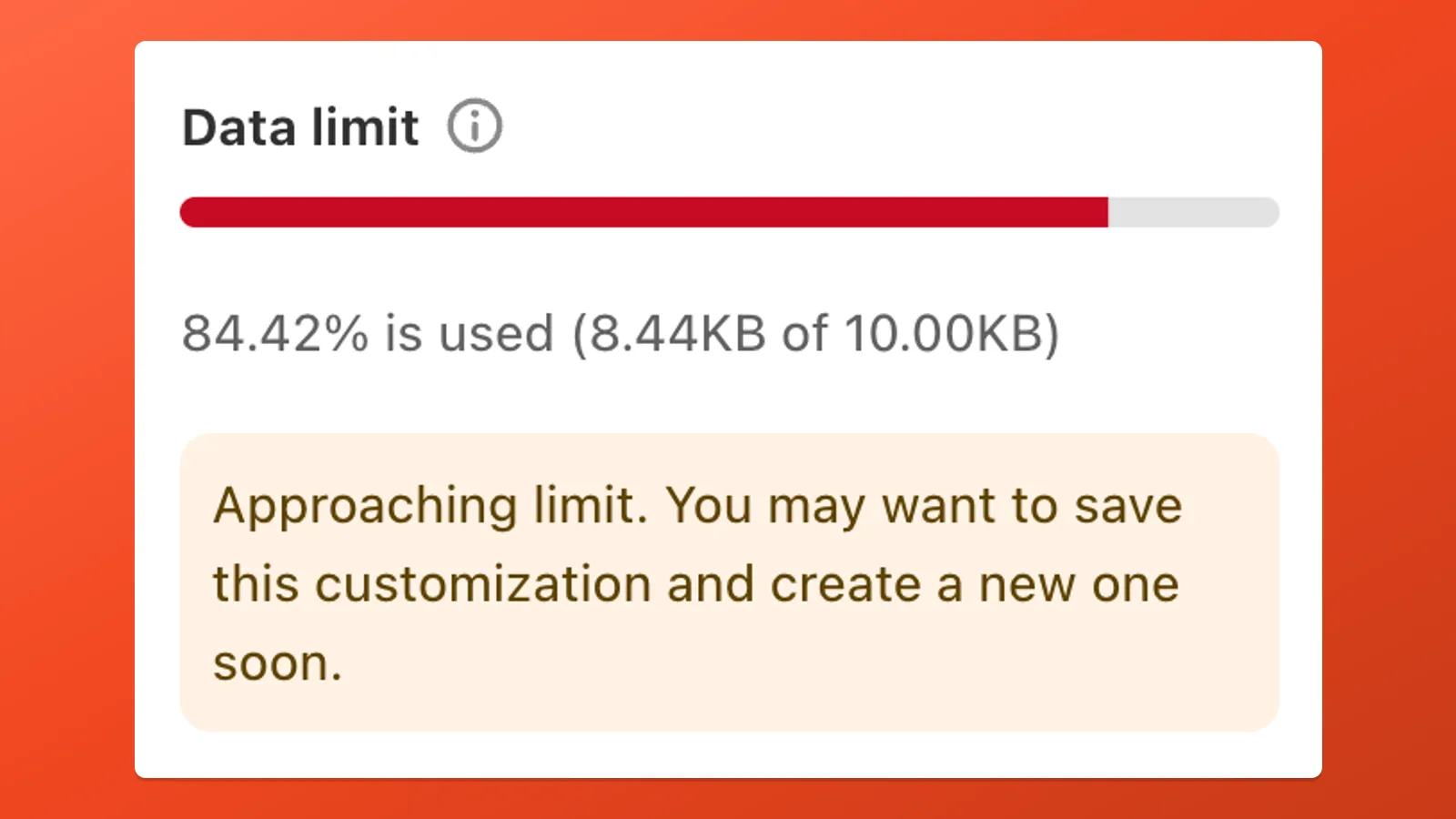
Section titled “10 KB data limit per customization”Each Payment Customization, Delivery Customization, and Payment Instructions customization stores its rules in Shopify with a 10.00 KB maximum size. That includes every condition value you enter (for example long comma-separated postcode lists, product tags, or method names) plus the rest of the rule configuration.
While editing, Payflow shows a Data limit bar in the app. As usage rises, the bar turns red and you may see a warning such as: Approaching limit. You may want to save this customization and create a new one soon. If you are close to the cap, save the current customization and start a new customization for additional rules instead of growing one setup indefinitely.