My rule isn't working — what should I check?
Work through this checklist whenever a customization does not behave as expected.
1. Is the customization Active?
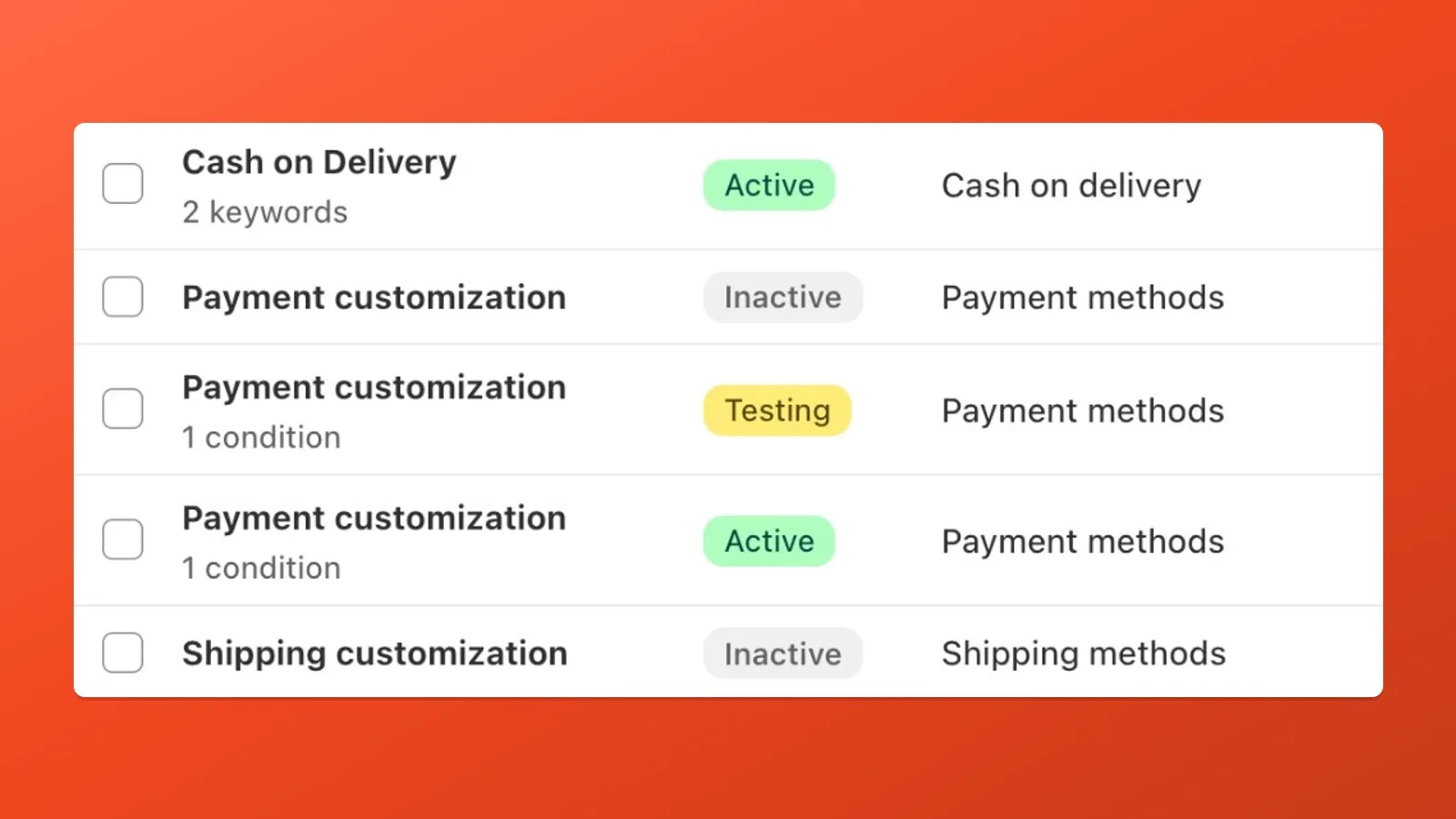
Section titled “1. Is the customization Active?”Open the customization in Payflow. The status must be Active — Testing and Inactive will not run on live checkouts. If you just created or edited the rule, make sure you pressed Save after switching the status.
2. Is the targeting correct?
Section titled “2. Is the targeting correct?”Payflow offers three targeting modes for payment and shipping methods:
| Mode | Matches when… |
|---|---|
| Pre-defined | Exact internal match (best for well-known methods like Cash on Delivery) |
| Contains text | The checkout label includes your substring (case-insensitive) |
| Equals to | The checkout label is an exact match (case-sensitive, including spaces) |
3. Does the method display only a logo?
Section titled “3. Does the method display only a logo?”Payment methods that show a brand logo at checkout (Shop Pay, PayPal, Apple Pay, Google Pay, Amazon Pay, and others) cannot be renamed. They can still be hidden or reordered. If your rename rule targets one of these, it will silently do nothing. See Limitations.
4. Are conditions evaluated at the right time?
Section titled “4. Are conditions evaluated at the right time?”Some conditions depend on checkout progress:
- Shipping country can fall back to Shopify’s checkout localization country before the full address is entered, then uses the entered shipping country once available.
- Address-specific conditions (postcode, city, province, street, phone) only fire after the customer enters those address details. The payment or delivery list may look unchanged until then.
- Shipping method name conditions fire after the customer selects a shipping rate.
- Customer conditions that require login (lifetime spend, order count, metafields) return empty for guest checkouts.
If the rule “works sometimes,” check whether the condition’s prerequisite is met in your test scenario.
5. Are there conflicting rules?
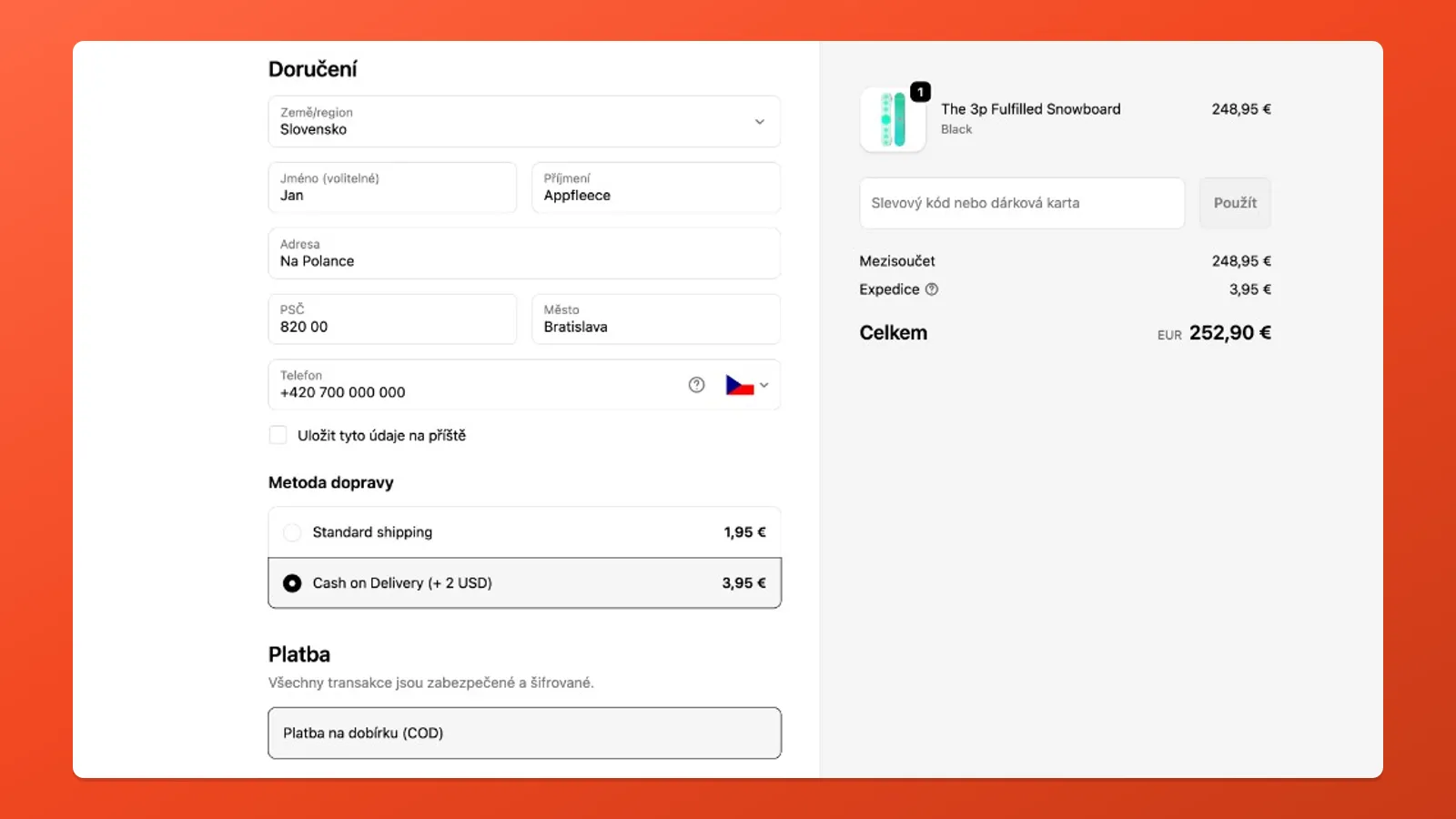
Section titled “5. Are there conflicting rules?”Multiple customizations can target the same method. For example, one rule may hide COD while another’s conditions keep it visible. Check your full list of active customizations for overlaps.
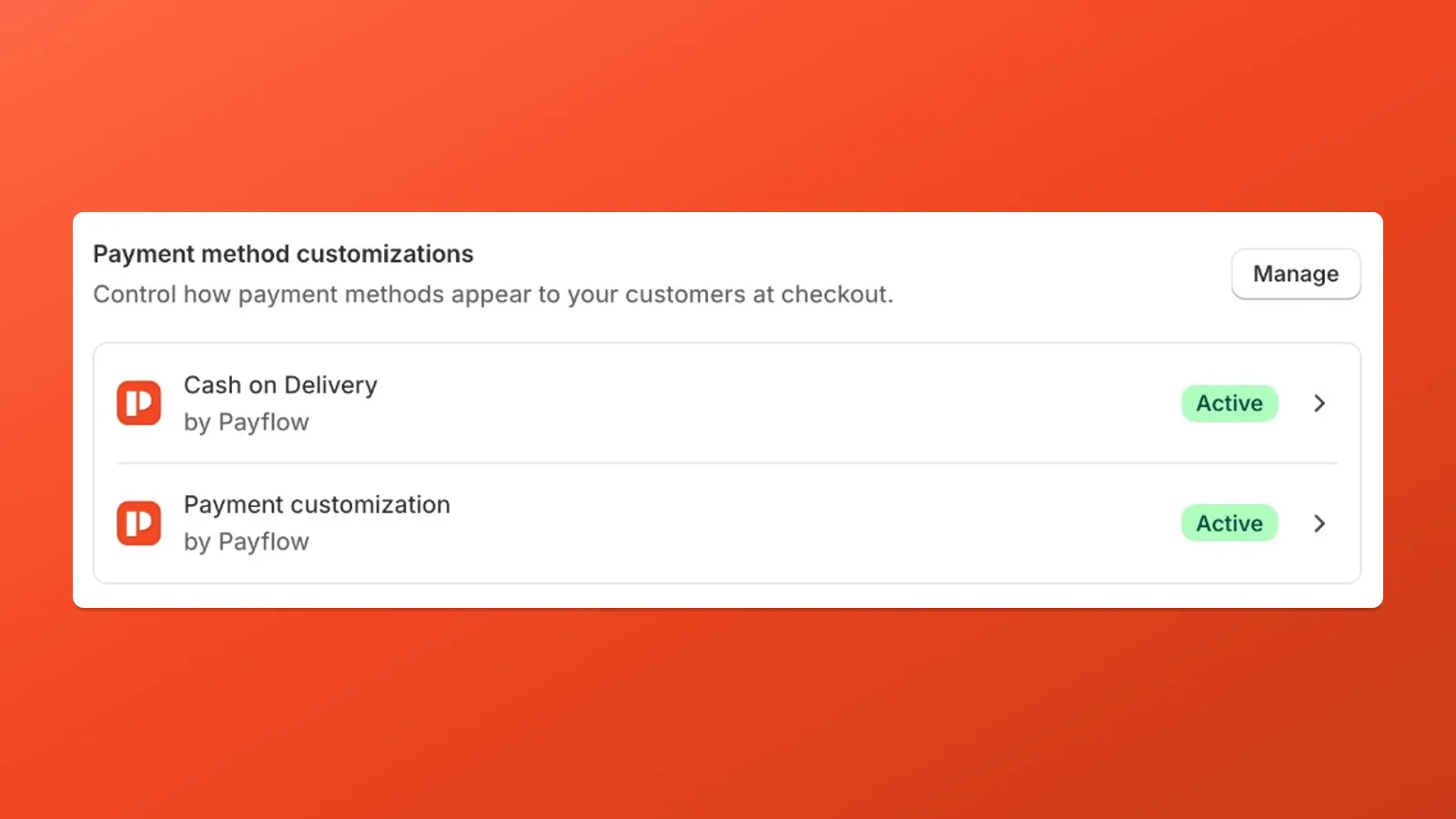
Other Shopify apps can also create Payment and Delivery Customizations that share the same 25-rule limit. Open Shopify admin → Settings → Payments (or Shipping and delivery) and look for customizations from other apps.
6. Test in a real checkout
Section titled “6. Test in a real checkout”The Shopify admin order editor and preview modes do not run Shopify Functions. Always test by going through a real checkout on your storefront (you can use a test payment gateway or Shopify’s Bogus Gateway).
Still stuck?
Section titled “Still stuck?”If you’ve checked every item above and the rule still doesn’t apply, contact us at help@appfleece.com or via the in-app chat — include a screenshot of the customization and the checkout where it fails.