Delivery Customization
Delivery Customization controls which shipping rates appear at checkout, their labels, and their order. Like Payment Customization, you enable actions in the sidebar (Allow the following actions), build conditions under When the following conditions are met, and use the + Add AND condition and + Add OR group buttons below the conditions to grow your logic. The preview shows how rates are affected.
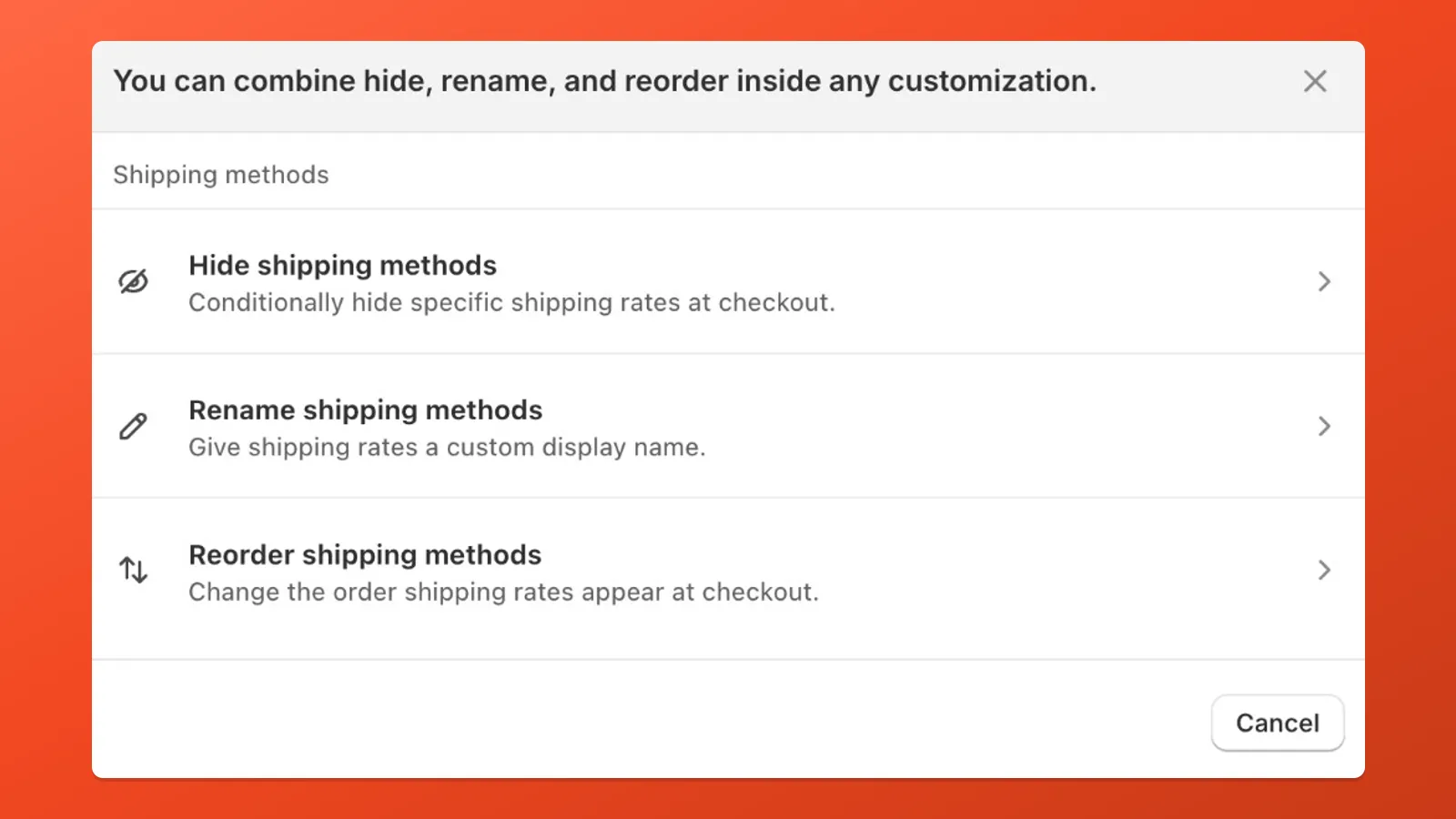
What a Delivery Customization includes
Section titled “What a Delivery Customization includes”Each Delivery Customization includes:
- One or more enabled actions — hide, rename, or re-order shipping methods, configured after you tick the relevant options in the sidebar
- Optional conditions — click + Add AND condition to add another row in the same branch (all must match); click + Add OR group to add another branch (the rule runs when any branch matches)
- One evaluation — when your conditions match, every enabled action runs together
Payflow activates each customization as a native Shopify Function. Which conditions you can combine still depends on condition sets (Shopify Function input limits). See Condition Sets, including Set 6 — Combined.
Create a Delivery Customization
Section titled “Create a Delivery Customization”- In Payflow, click Create customization and select Delivery Customization.
- Enter a descriptive name (e.g. “Hide Express outside UK”).
- In the sidebar under Allow the following actions, enable the actions you need, then configure targets in the main panel.
- Optionally add conditions under When the following conditions are met. Click + Add AND condition or + Add OR group below the conditions as needed.
- Review the preview against your shipping rate names (see Preview and matching shipping rates).
- Click Save.
Hide a shipping method
Section titled “Hide a shipping method”What it does
Removes a shipping rate from the list customers see at checkout (for the checkout contexts where your rule applies).
When to use
- Restrict express or same-day options to certain cities or postcodes
- Hide pickup or local delivery when the address is outside your service area
- Filter rates by name pattern when you have several similar carrier options
How to target
| Mode | When to use |
|---|---|
| Store rates | Choose from the shipping rates defined in Shopify admin → Settings → Shipping and delivery — not a separate Payflow list. You pick the rate by name from your store configuration. If the same name is used in more than one zone or profile, Payflow shows zone context and Configure zones so you can target the right instance or limit the rule to specific regions. |
| Text contains | Hide any rate whose checkout title contains your text (case-insensitive). Same idea as Payment Customization — good for patterns (e.g. every rate with “DHL”). |
| Text does not contain | Hide rates whose titles do not contain your text — a show-only style filter. Same behaviour as Payment Customization. |
| Equals to | Hide only when the rate title equals your string exactly. Same behaviour as Payment Customization. |
| Free shipping (price is 0) | Hide rates whose actual checkout price is 0, even if the rate title does not include “free”. |
| Price equals / at most / at least / between | Hide rates by the actual checkout amount Shopify provides for that rate. Useful for price bands such as free, economy, premium, or freight rates. |
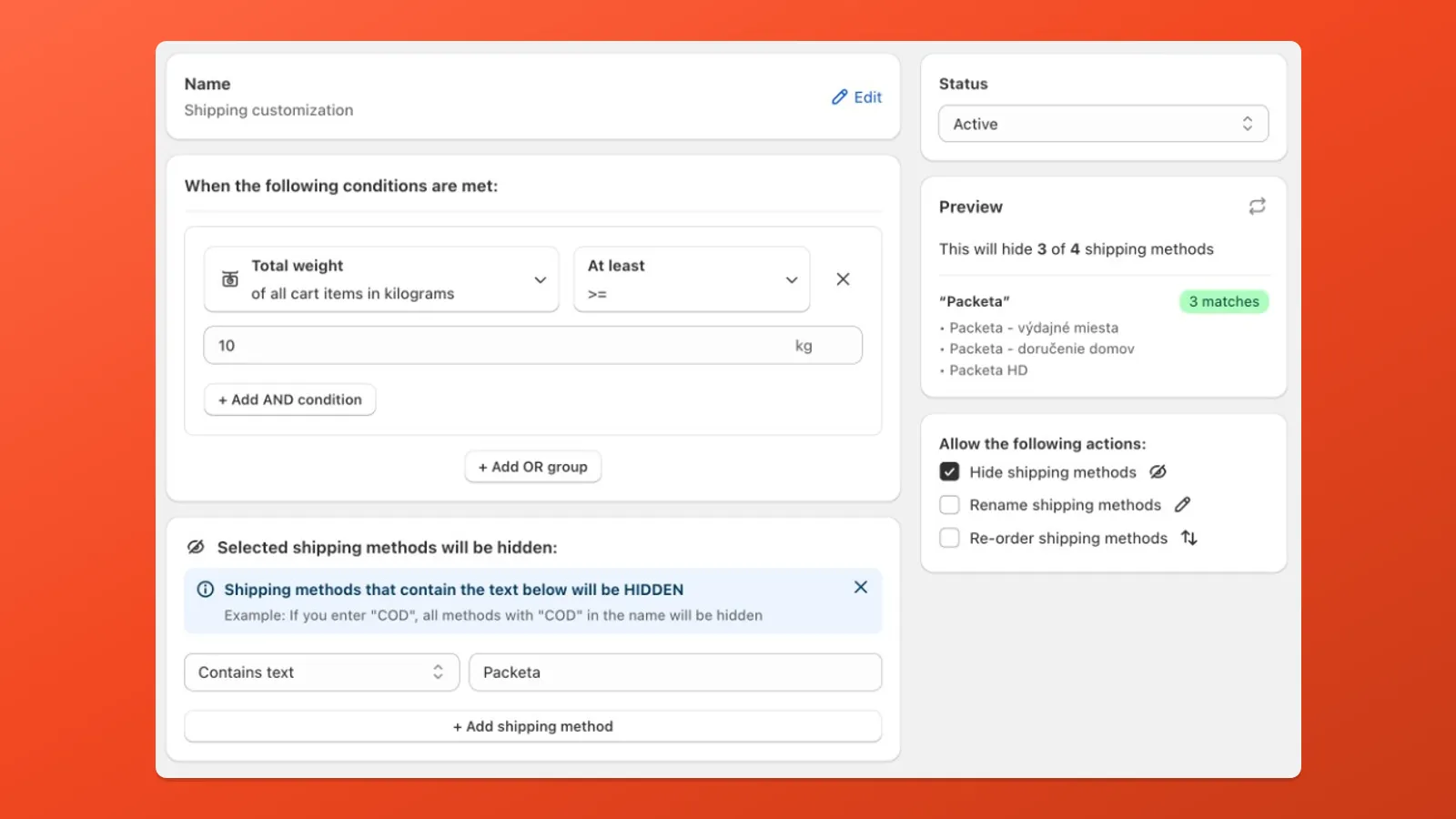
When a rate is a normal row in Shopify admin → Settings → Shipping and delivery, picking it under Store rates is usually the least ambiguous option: Payflow uses the same names you saved, with disambiguation when the same title appears in more than one zone.
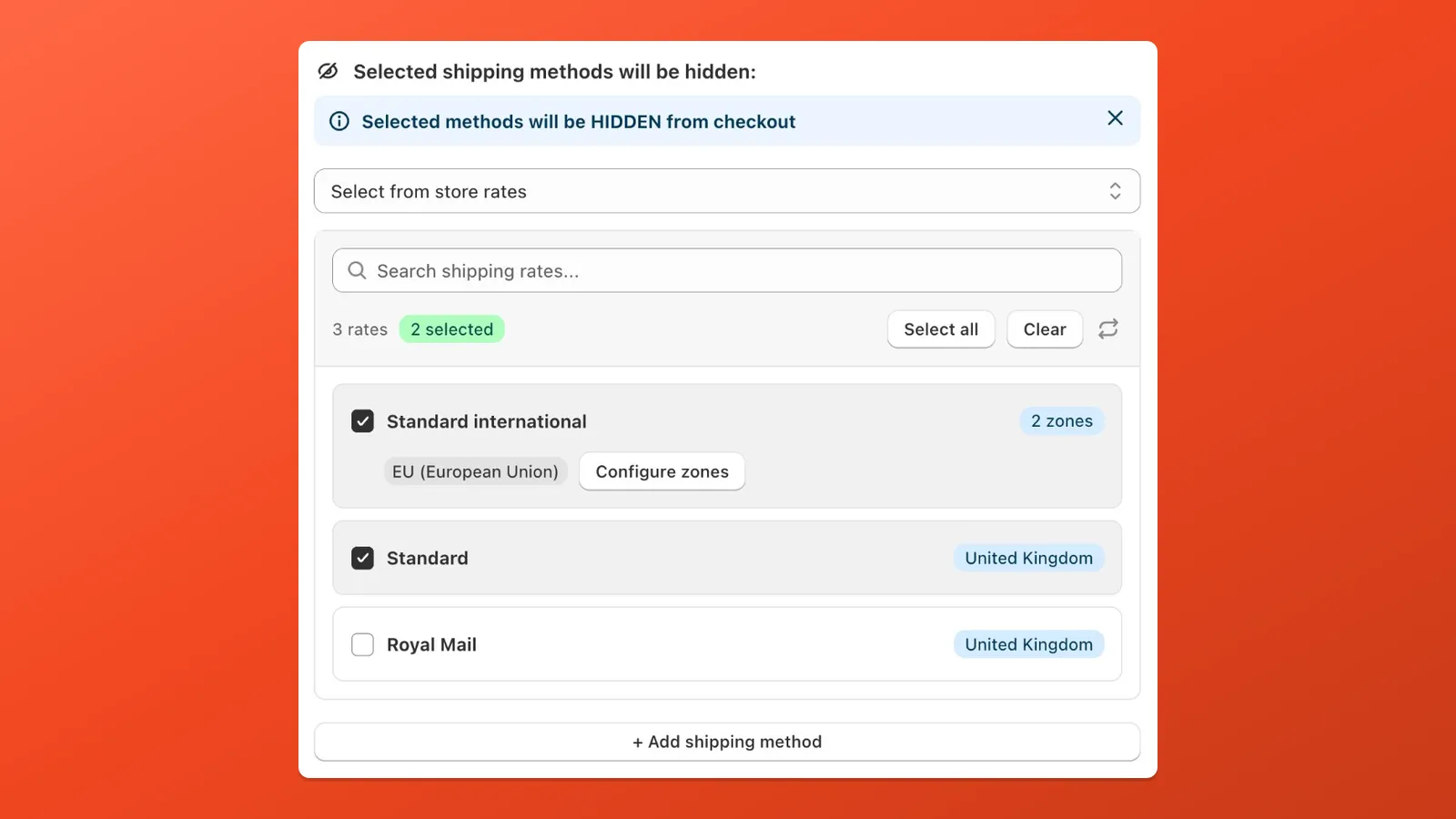
Under Hide and Rename when you use Select from store rates, Payflow loads your Shopify rates so you can search, multi-select, and add more with + Add shipping method. When a rate exists in more than one zone, you’ll see a zone count (for example 2 zones) and region labels; use Configure zones if you want the action to apply only in some of those regions — not everywhere that rate name appears. (Reorder does not use Select from store rates; see Reorder shipping methods.)
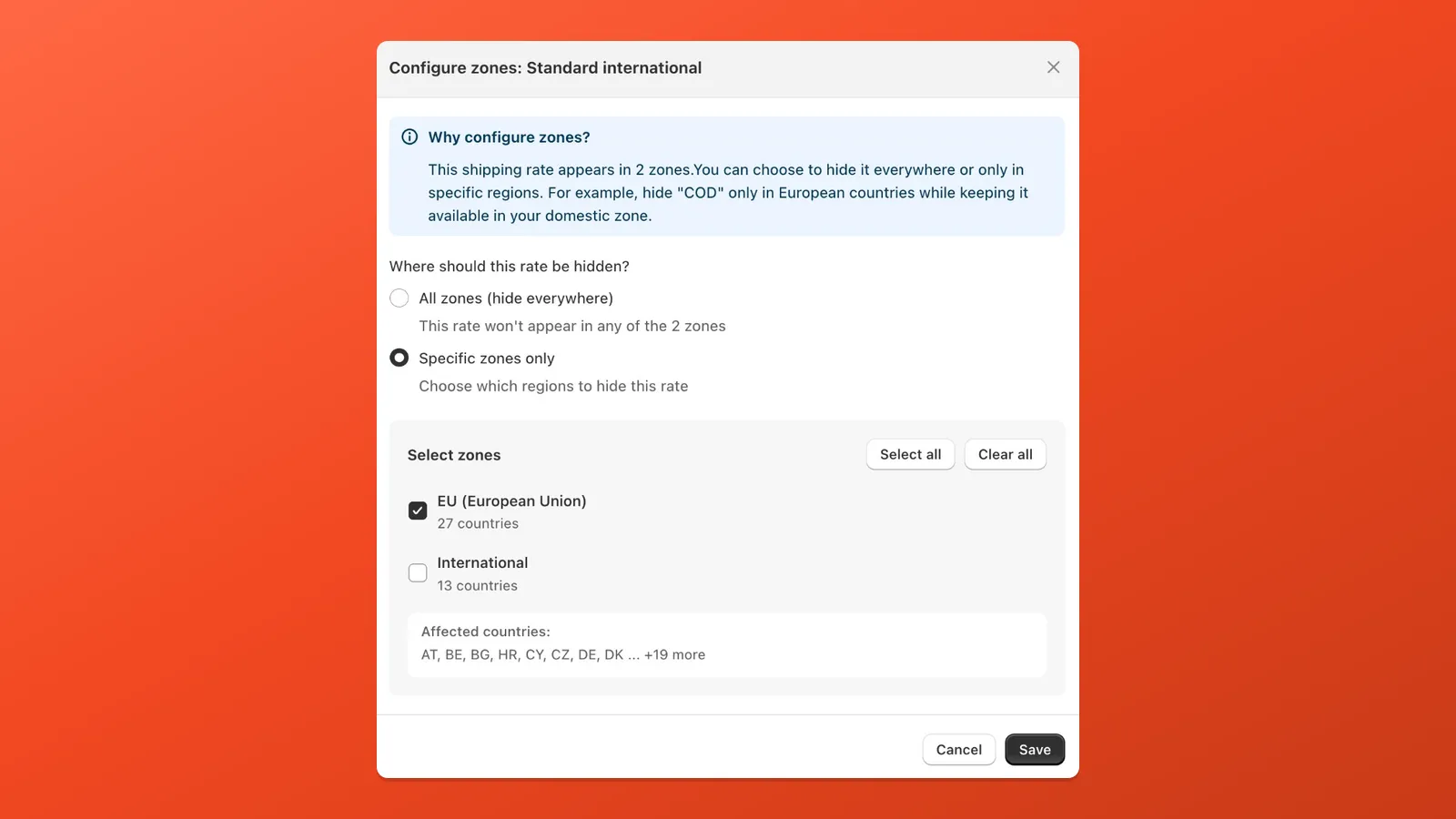
In Configure zones, choose All zones to affect every place that rate is offered, or Specific zones only to limit the rule — for example hide Standard international in the EU zone but leave it available in your International zone. The dialog summarizes which countries are included before you save.
Rename a shipping method
Section titled “Rename a shipping method”What it does
Changes the customer-facing name of a shipping rate at checkout.
When to use
- Translate rate names for a market or Shopify Market
- Replace internal codes (“STD_GROUND_V2”) with friendly copy
- Clarify delivery expectations (“Standard — 3 to 5 days”)
How to target
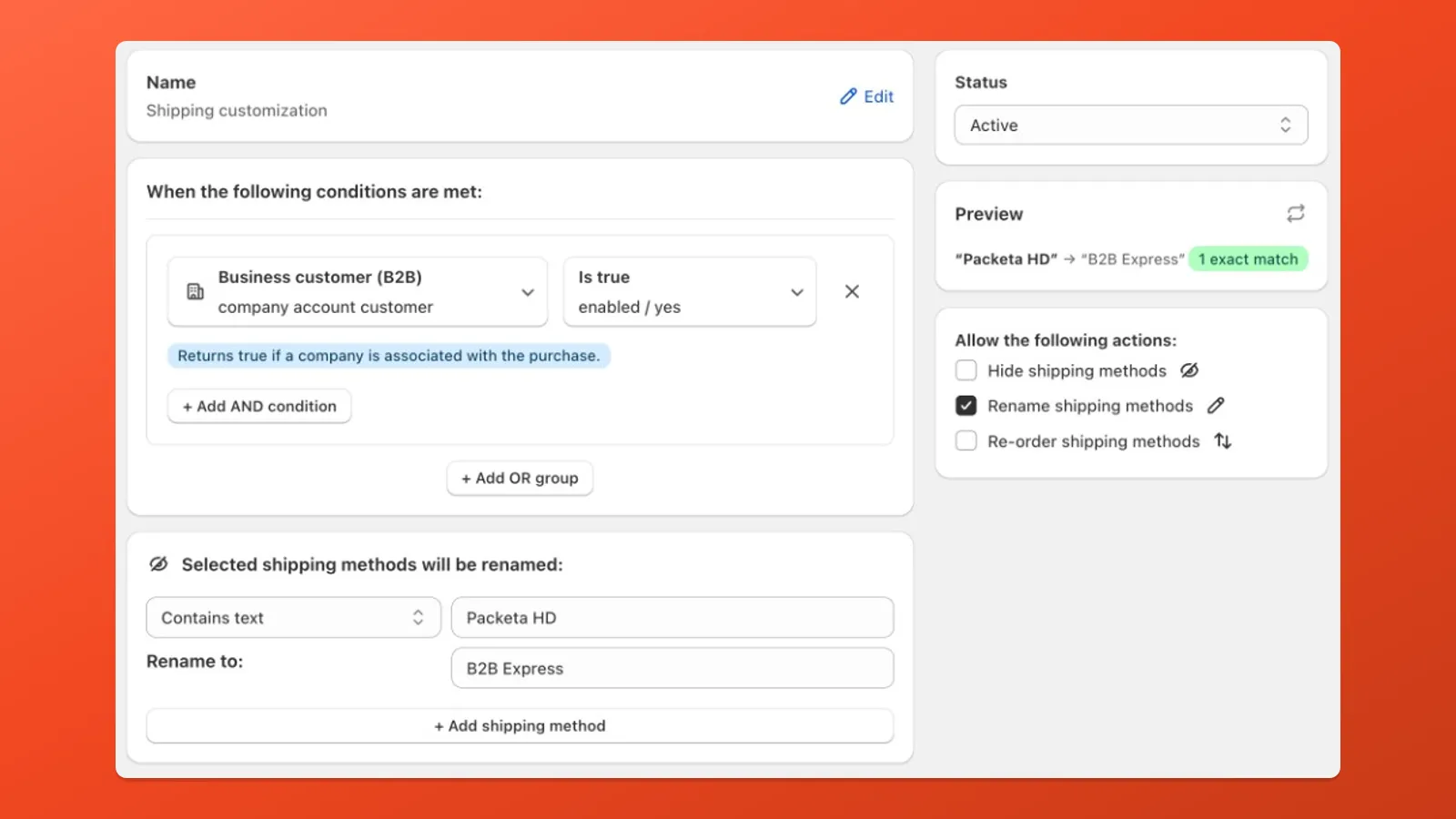
Same modes as Hide: Store rates, Text contains, Text does not contain, Equals to, and price-based targets such as Free shipping (price is 0) or Price between. Dynamic rates follow the same rules: match the checkout title when the name is reliable, or match the actual checkout price when the amount is the reliable signal.
You can scope a rename with Shipping country, Shopify Market, Checkout language, or other conditions — whichever matches how you segment customers.
Reorder shipping methods
Section titled “Reorder shipping methods”What it does
Changes the order of shipping rates in the checkout list, or sorts the whole list by price.
When to use
- Surface your preferred default option first
- Move premium or slow options lower without removing them
- Keep preferred shipping groups near the top while preserving Shopify’s cheapest eligible default
Options
- Move to top — first in the list
- Move to bottom — last in the list
- Move to position — fixed index (1 = first)
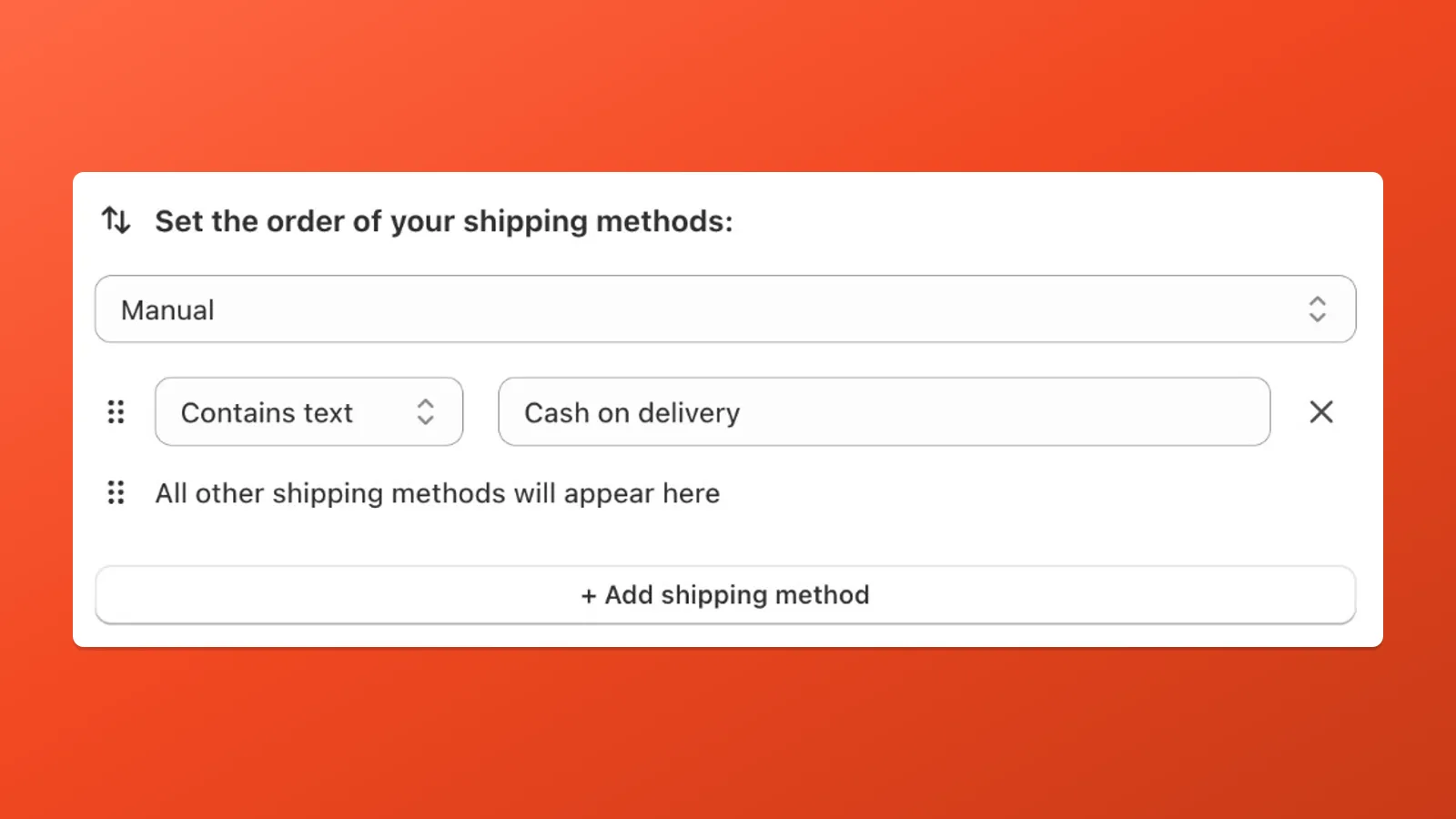
- Manual — build ordered groups with Contains text, Text does not contain, Equals to, or price targets such as Free shipping (price is 0) and Price equals (no Select from store rates); anything that does not match a row is collected under All other shipping methods
Choose Manual. Add one row per group and set each row to Contains text, Text does not contain, Equals to, or a price target so matching rates are grouped together, then drag rows to set priority — anything that does not match a row is collected under All other shipping methods. Typical patterns: put Cash on delivery (or a carrier keyword) near the top, move all free rates together, then everything else; repeat for more groups if needed.
Preview and matching shipping rates
Section titled “Preview and matching shipping rates”The preview panel shows how your actions apply to shipping rate names before you save. It mirrors what customers see once rates are resolved for a cart.
- Store rates targets rates from Shopify admin → Settings → Shipping and delivery, using the configured names. Used for Hide and Rename only — not for Reorder → Manual.
- Text contains, Text does not contain, and Equals to compare against the titles Shopify exposes at checkout.
- Price targets compare against the actual shipping rate amount Shopify exposes at checkout. Use Free shipping (price is 0) for rates that are actually free, or Price equals / at most / at least / between for specific price bands.
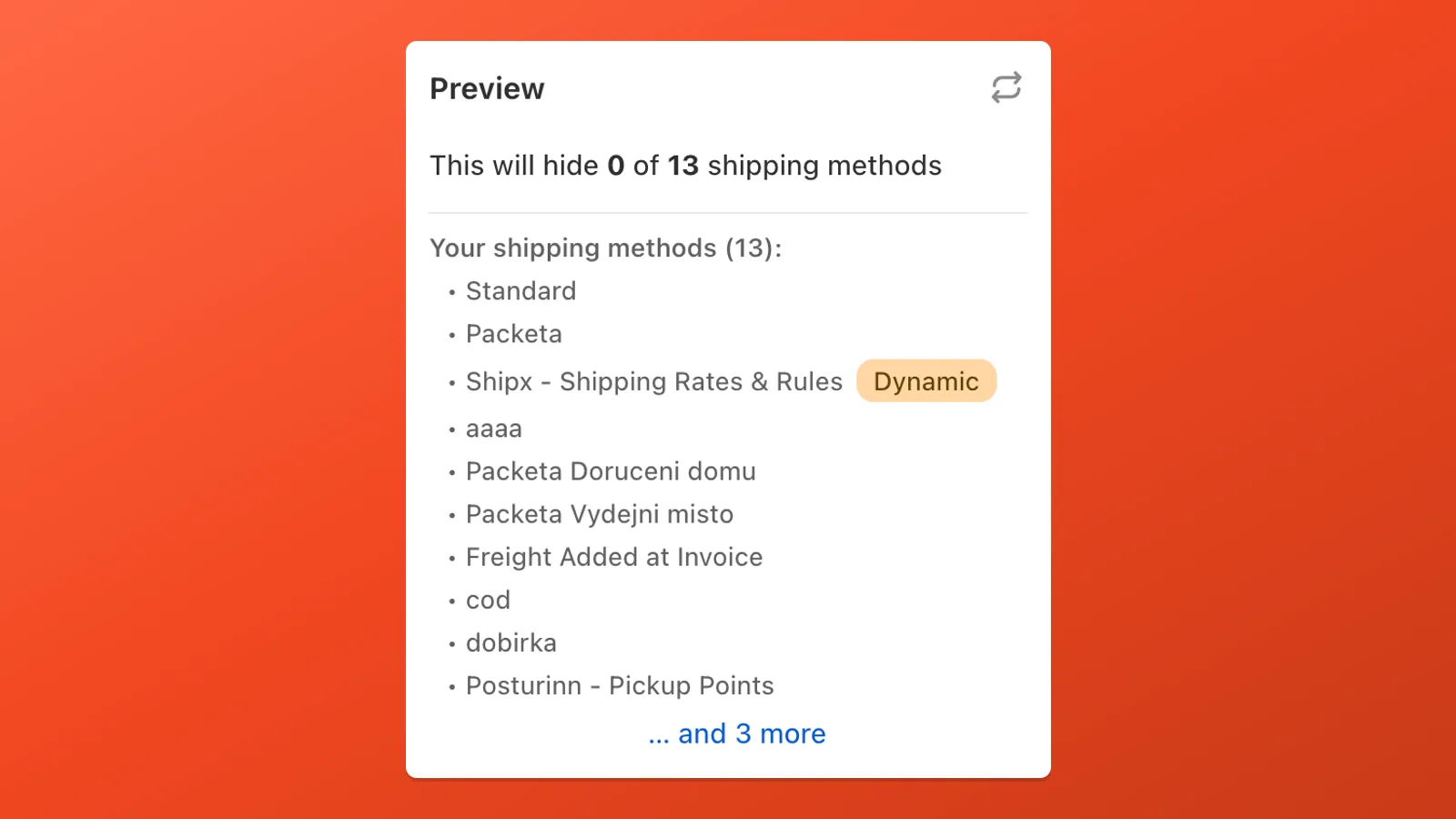
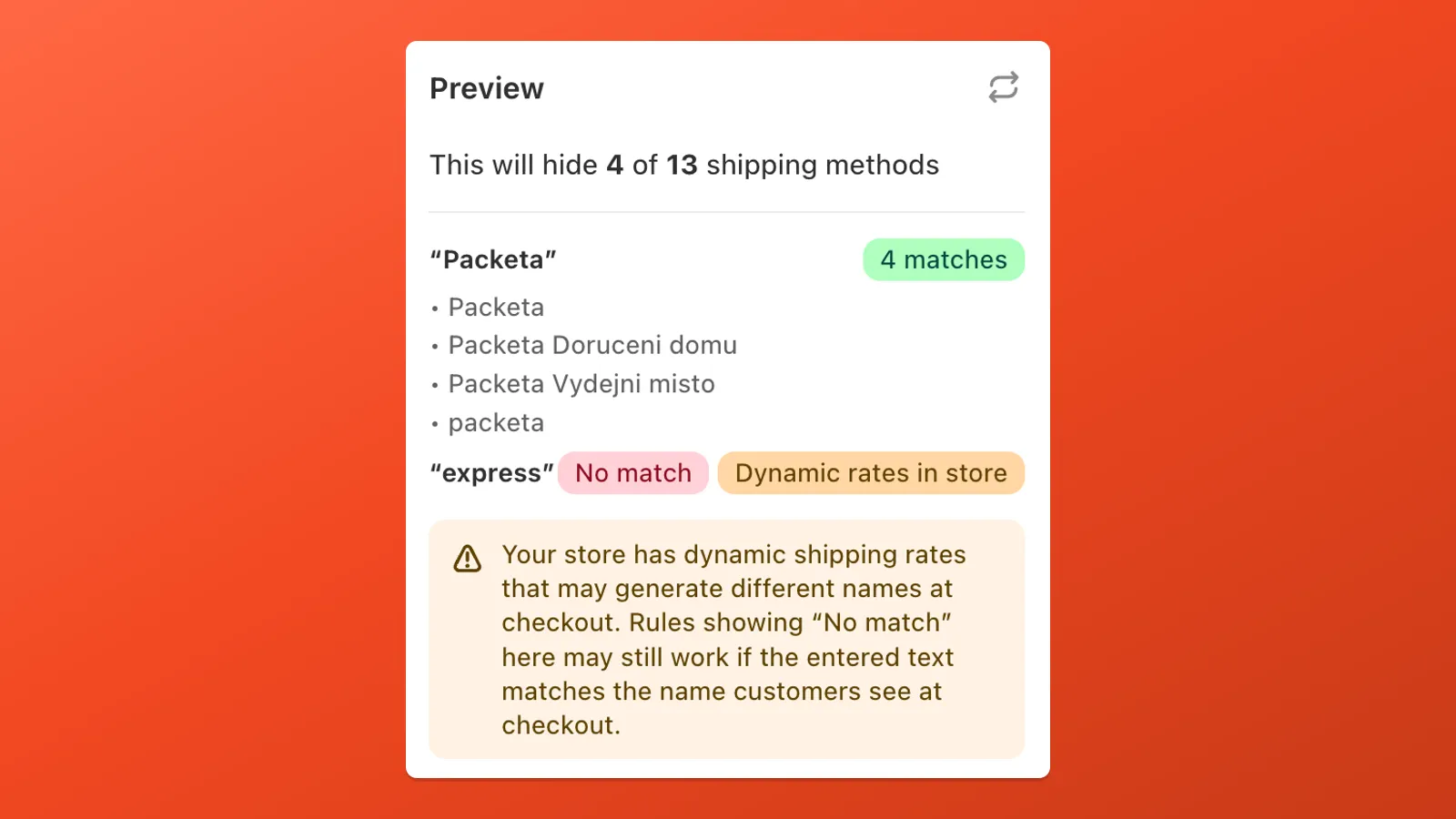
For text-based targeting, the preview lists which rate titles matched each keyword. A No match line may appear even though your store has dynamic rates that will match at checkout.
If you still cannot target a rate reliably, contact us.
Conditions and multiple actions
Section titled “Conditions and multiple actions”Delivery Customization uses the same condition builder, AND/OR logic, condition sets, and multi-action rules as Payment Customization. For full details, see:
- Conditions — the + Add AND condition and + Add OR group buttons, condition categories, and condition sets
- Multiple actions in one customization — when to combine actions vs split into separate rules