Cash on Delivery (COD) Setup
Cash on Delivery (COD) is a popular payment option in many markets — customers pay when they receive their order. Payflow lets you offer COD with an optional fee and control exactly when it appears at checkout.
How Payflow implements COD fees
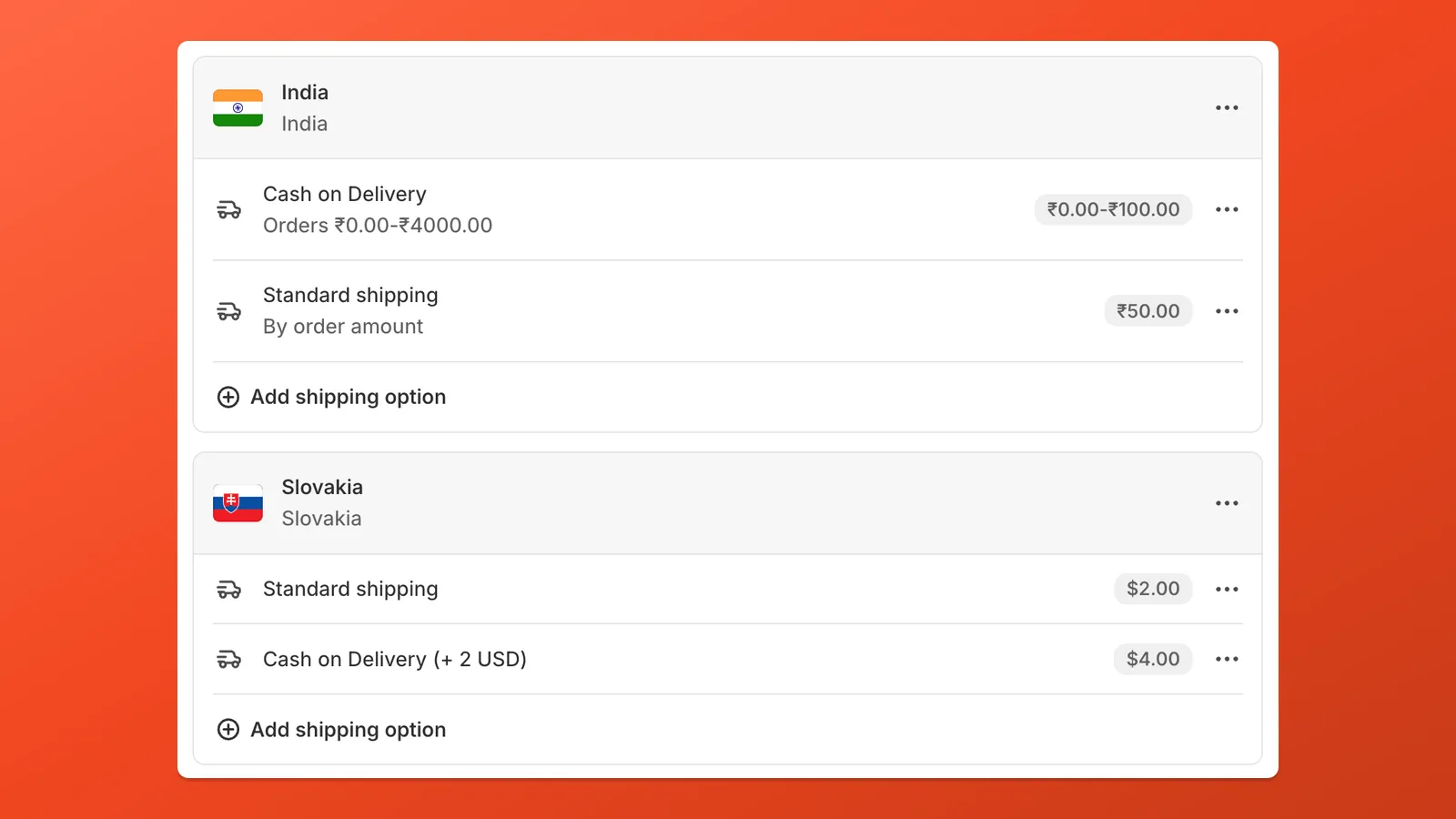
Section titled “How Payflow implements COD fees”Shopify does not natively support adding a fee to a payment method. Payflow works around this using a shipping-rate approach:
- You create a separate shipping rate in Shopify that includes the COD fee (e.g. “Cash on Delivery (+ 2 USD)”).
- Payflow shows or hides the COD payment method based on which shipping rate the customer selects — if the customer picks the COD shipping rate, the COD payment option appears; otherwise it stays hidden.
- The COD fee is collected as part of the shipping cost — no workarounds or post-purchase edits needed.
Step-by-step setup
Section titled “Step-by-step setup”Step 1: Create shipping rates and a COD payment method in Shopify
Section titled “Step 1: Create shipping rates and a COD payment method in Shopify”Before configuring Payflow, complete these steps in your Shopify admin:
In Shopify admin → Settings → Shipping and delivery, add at least two shipping options in each relevant zone (for example one zone per country):
- Standard shipping (or similar) — your normal prepaid rate, without a COD fee baked in.
- Cash on Delivery — a separate rate that includes your COD collection fee in the shipping price. The name should include a recognizable keyword (e.g. “COD”, “Cash on Delivery”) that you do not use on prepaid rates, so Payflow can match it.
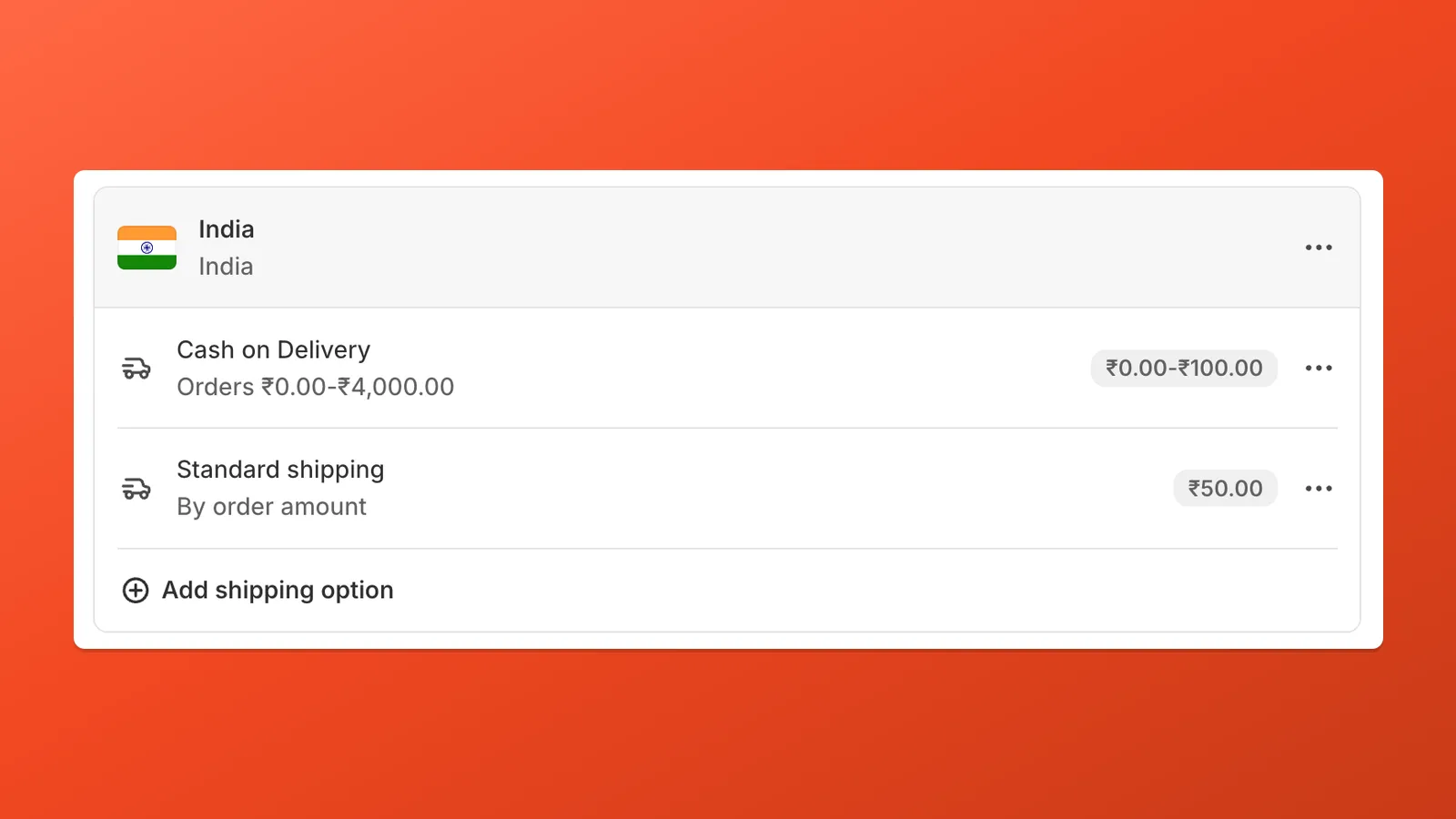
Shopify shipping zone showing standard and Cash on Delivery shipping options You can use a flat rate for COD, or open Rate type → Order amount to add tiers (for example a fixed COD fee for orders up to a subtotal, then a lower or free COD price above that).
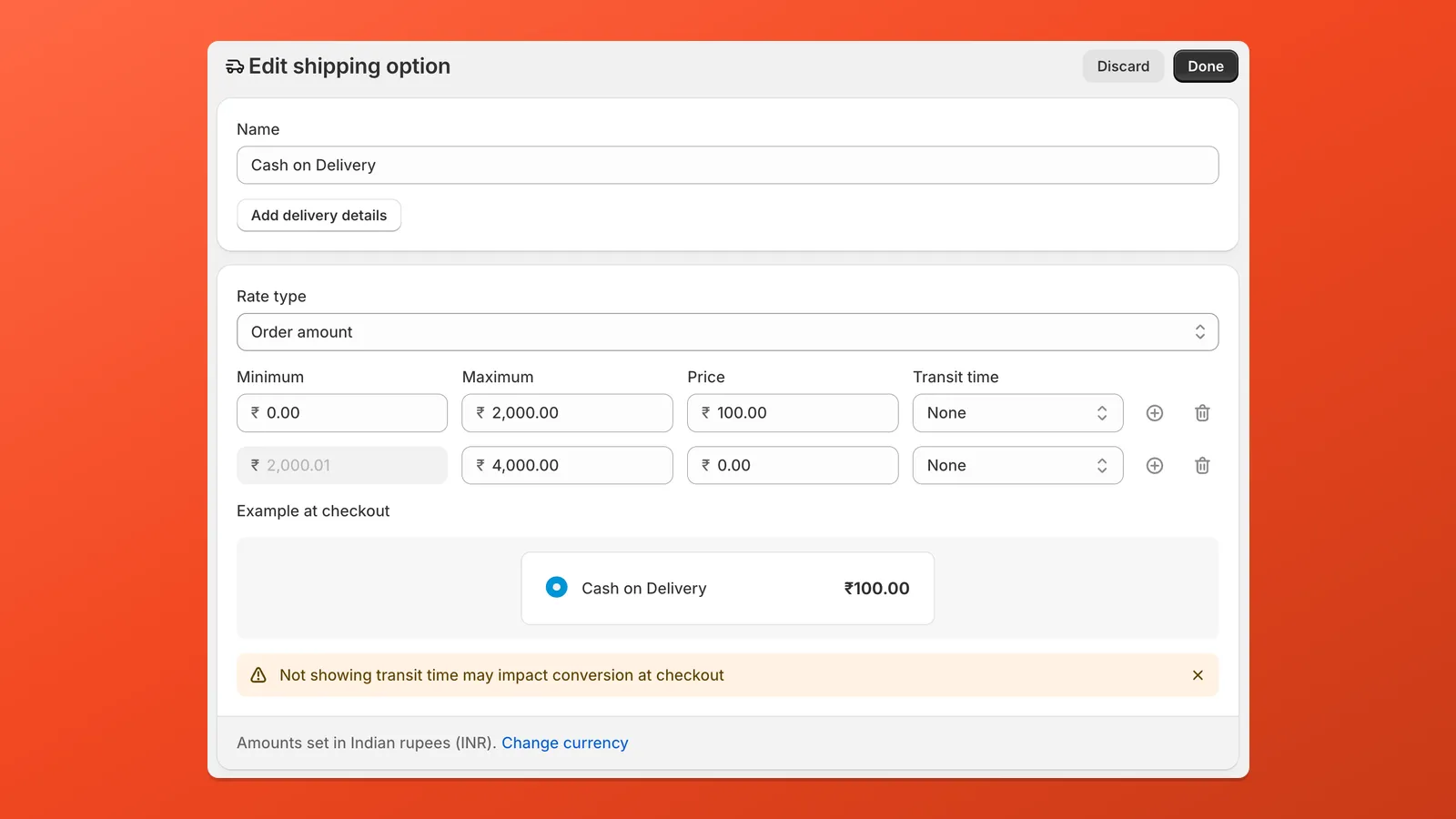
Editing a Cash on Delivery shipping rate with different prices by order size Percentage-to-tiers calculator
Section titled “Percentage-to-tiers calculator”If you want tiered flat fees that approximate a percentage of the order, use Payflow’s Percentage-to-tiers calculator in the Help center or Cash on Delivery Setup (fee %, max order value, optional base shipping fee, tier count). The same pattern also applies to prepaid orders and non-COD payment methods when you model an extra charge as shipping — see the dedicated guide Tiered fees by order amount.
Under Settings → Payments → Manual payment methods, add Cash on Delivery (COD). Shopify’s built-in manual method is recommended — Payflow detects it and pre-selects it in COD Setup.
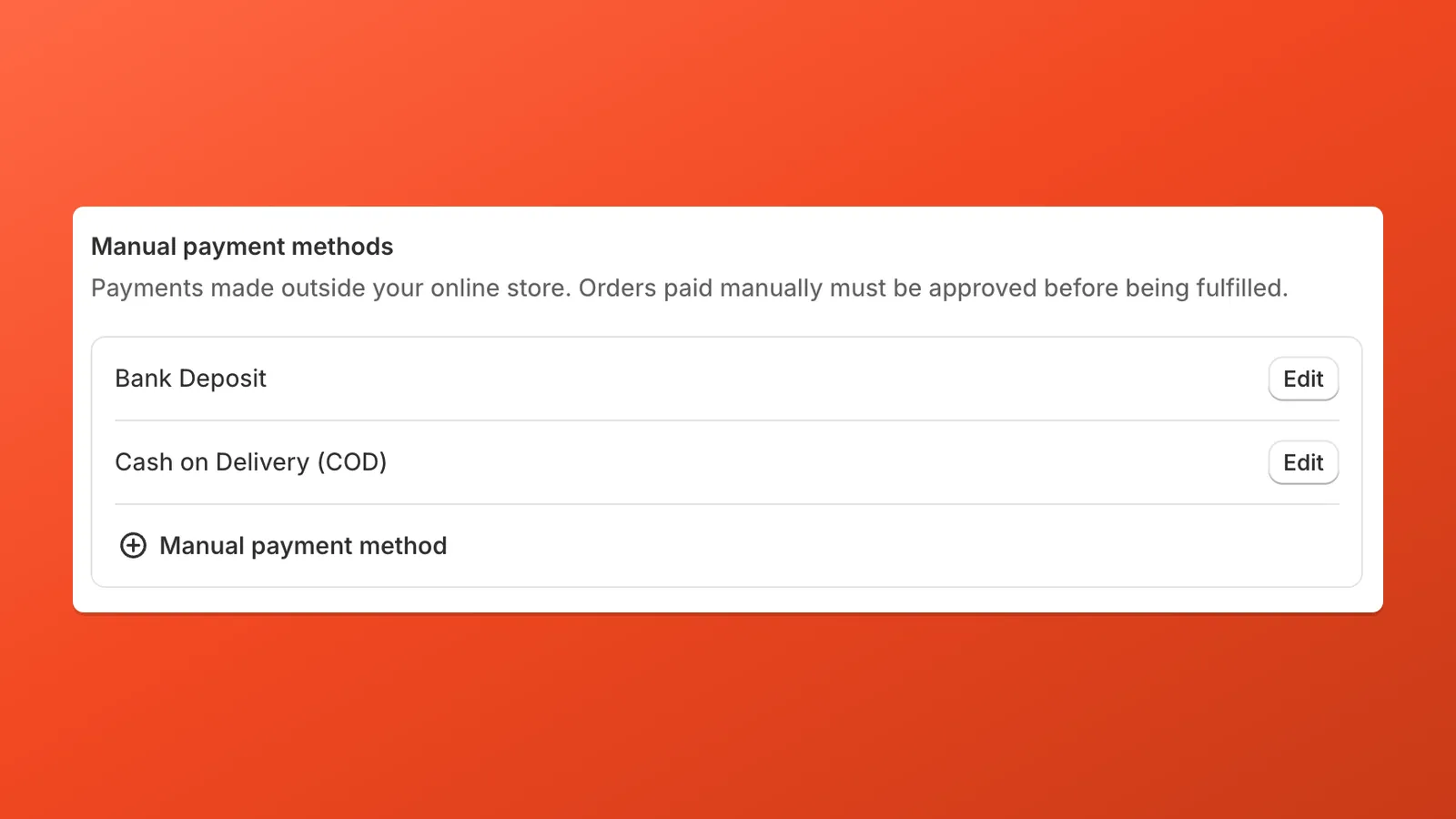
Shopify Payments settings: Cash on Delivery listed as a manual payment method
Step 2: Use the built-in COD Setup tool
Section titled “Step 2: Use the built-in COD Setup tool”- In Payflow, go to Create customization → Cash on Delivery Setup.
Payflow scans your store’s shipping methods for common COD keywords across multiple languages and shows any matches automatically. You can also add keywords manually if a shipping method is not detected.
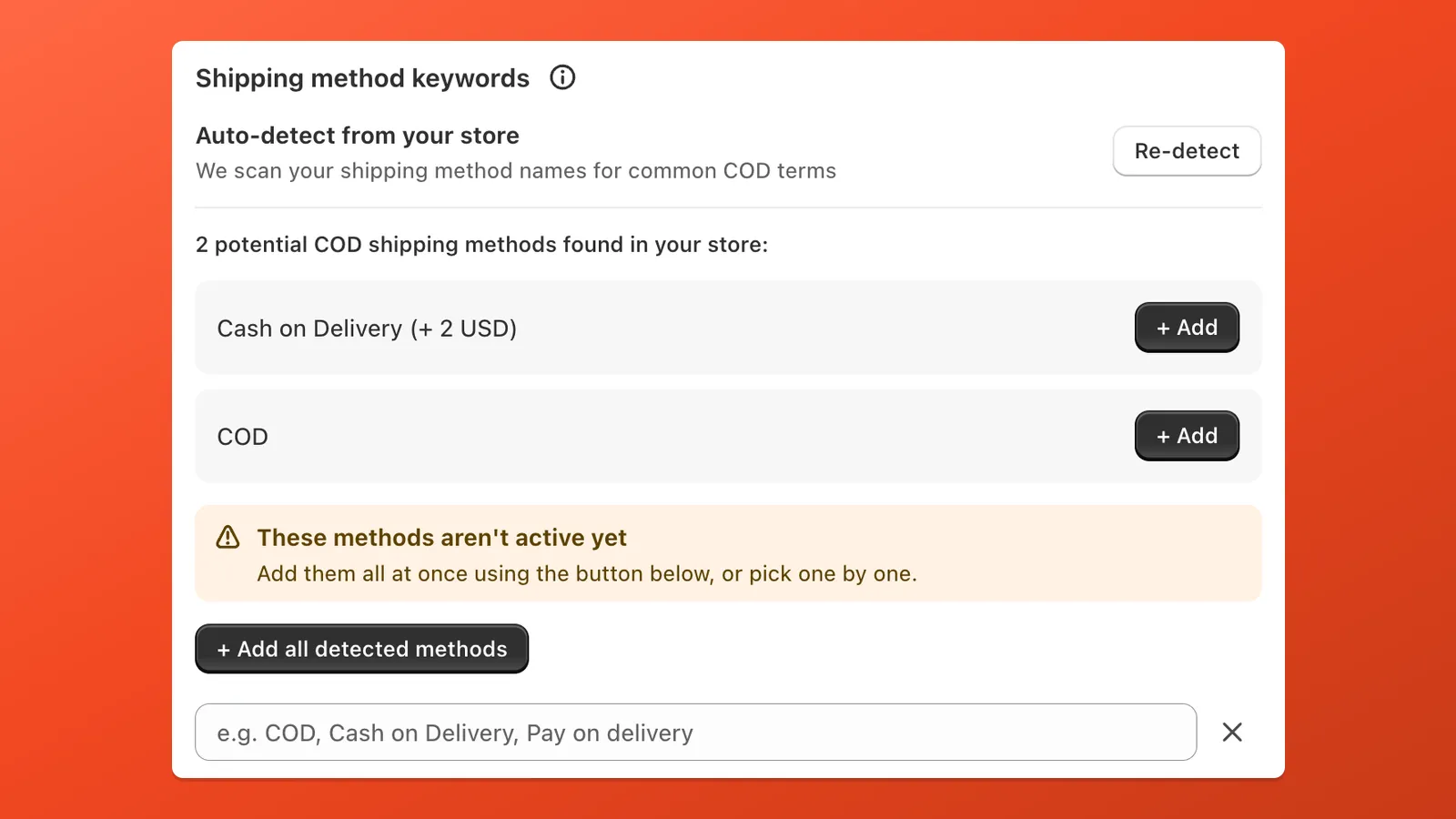
Payflow found your shipping methods and lets you add them to the COD setup - Click + Add all detected methods to add every match at once, or pick individual methods with + Add.
After adding, the keywords appear as tags. You can also type additional keywords manually in the input field.
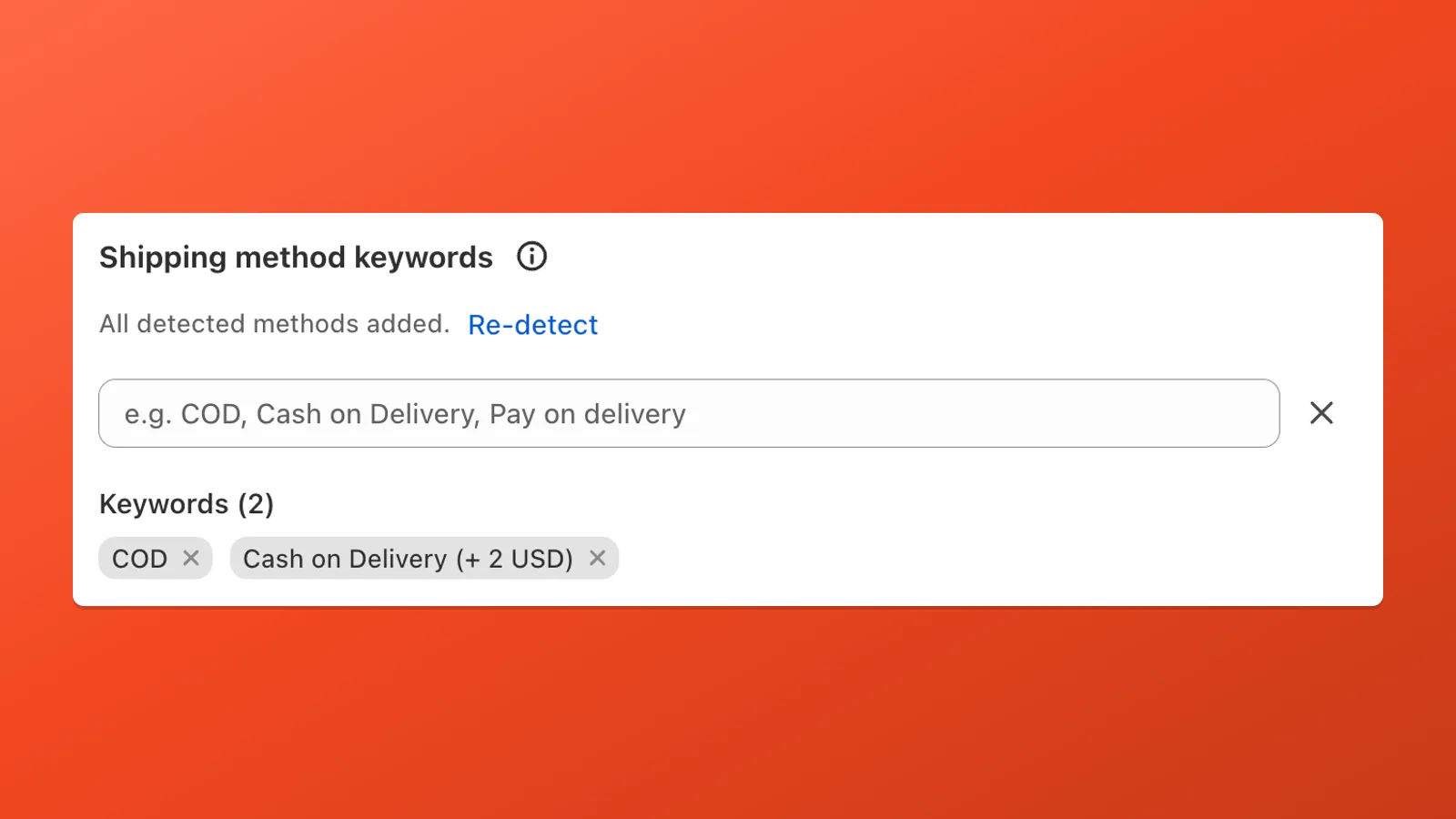
Tagging shipping rates with keywords so Payflow can match your COD options If you used Shopify’s built-in Cash on Delivery (COD) from Step 1, Payflow detects it and pre-selects Cash on delivery method name automatically.
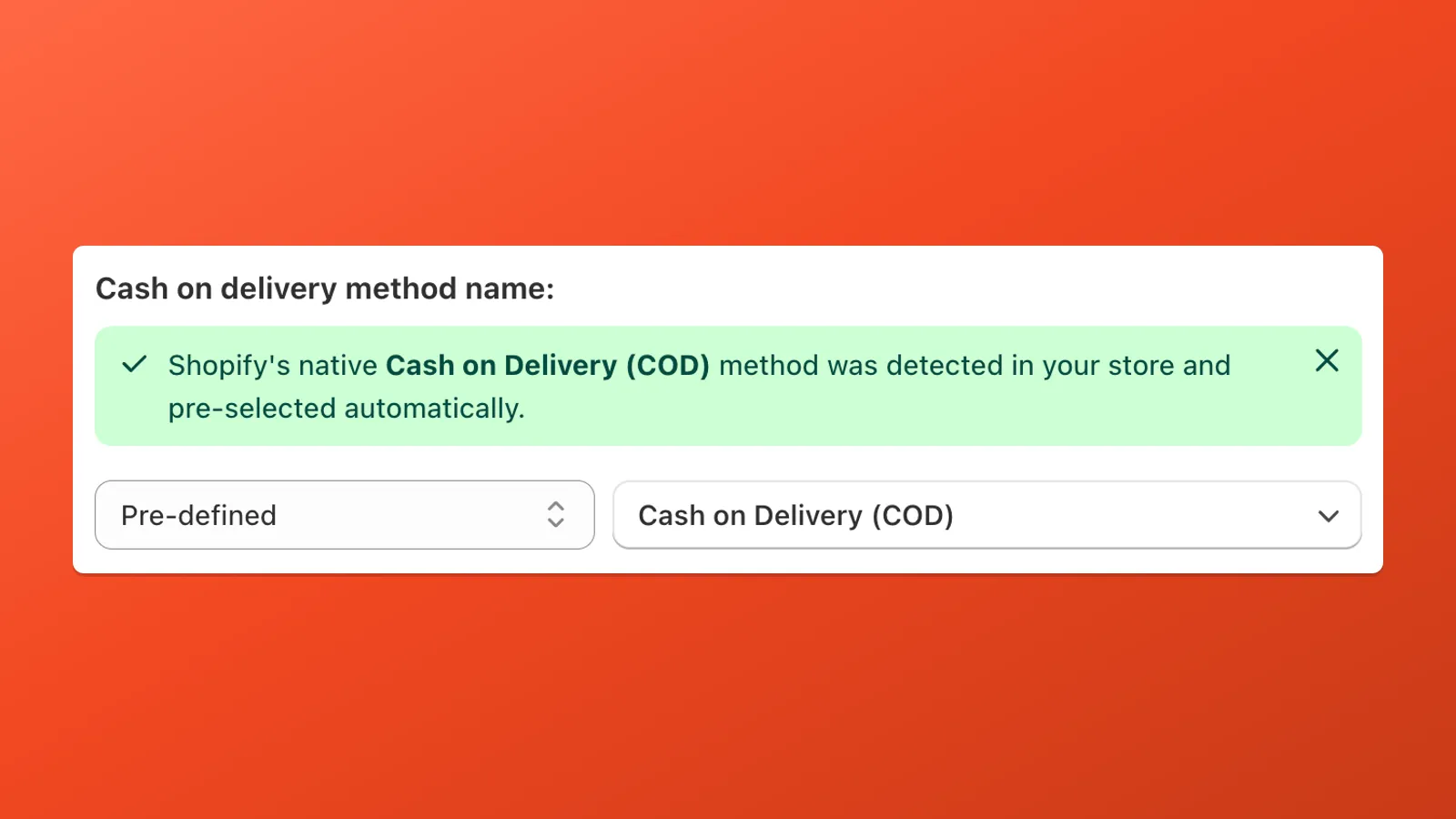
Payflow detected your Cash on Delivery payment method in Shopify - Set the status to Active and click Save.
COD Restrictions Payflow Pro
Section titled “COD Restrictions ”With Payflow Pro, Cash on Delivery Setup includes COD Restrictions: grouped checkboxes for extra rules that hide COD when conditions match. They run at checkout automatically — you do not build separate customizations for each rule.
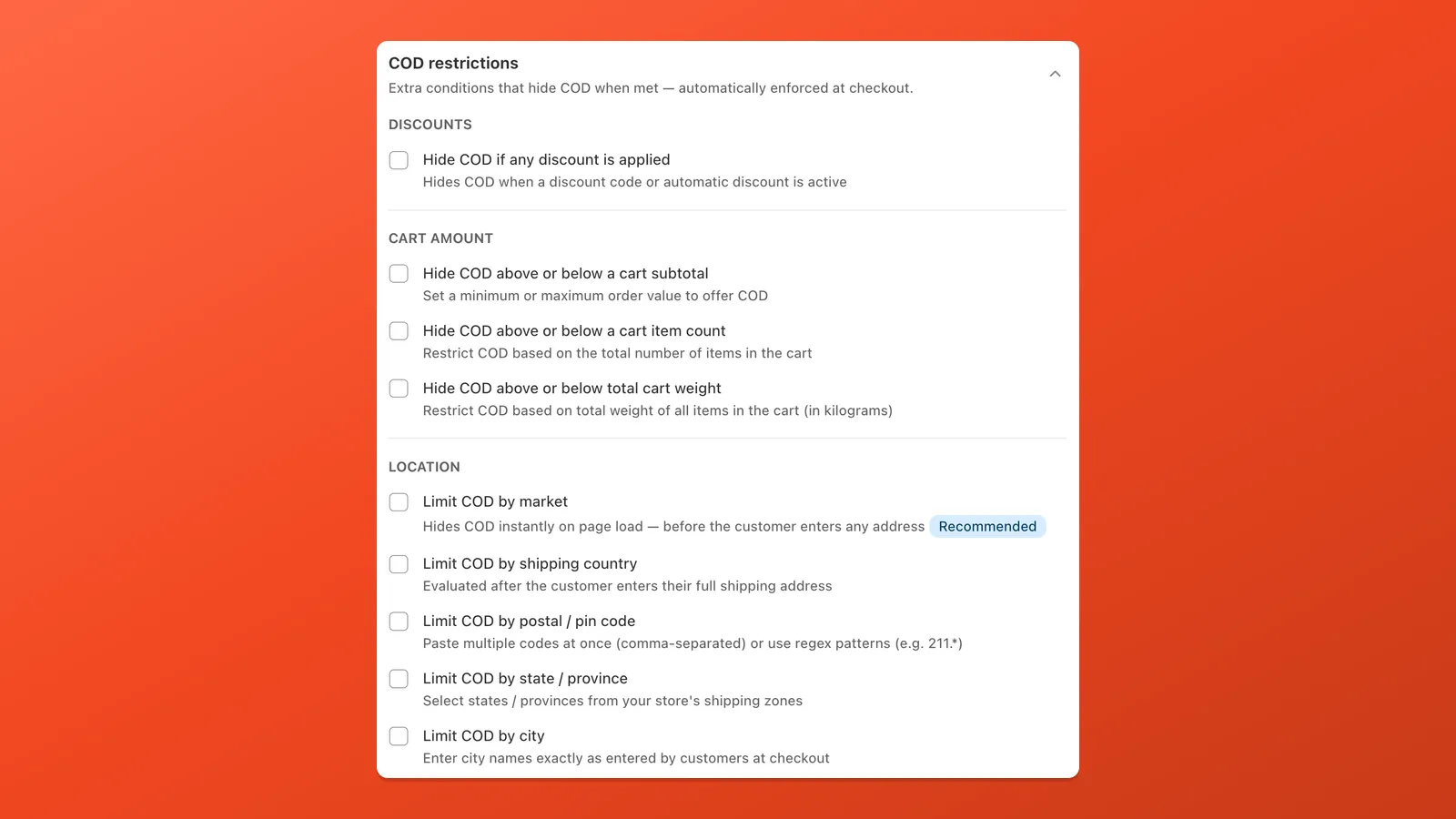
| Category | Sub-rules (examples) |
|---|---|
| Discounts | Hide COD when any discount is active — discount codes (customer enters the code) usually give clearer checkout than automatic discounts, which can hide COD for everyone before other methods are ever shown |
| Cart | Hide COD above/below limits for subtotal, item count, or total weight (kg) |
| Location | Limit by market, country, postal/pin (comma list or patterns like 211.*), or state/province |
| Products | Hide COD if a product or tag is in the cart |
| Customer | Limit by customer tag or hide for guest checkout |
COD fee by region
Section titled “COD fee by region”If your store ships to multiple countries with different COD fees, set up a separate shipping rate per shipping zone in Shopify admin → Settings → Shipping and delivery — each zone can have its own COD rate with a different fee. As long as each rate name contains a recognizable COD keyword, a single COD Setup in Payflow covers all of them. Just add all keywords and Payflow matches them automatically.