Payment Customization
Payment Customization controls which payment methods appear at checkout, what they are called, and in what order they are listed. In the editor, you turn on Allow the following actions in the sidebar (hide, rename, re-order), build when the rule applies under When the following conditions are met, and use the preview on the right to scan what will happen before you save. Below your conditions, two buttons control how logic grows: + Add AND condition (another requirement in the same branch) and + Add OR group (a separate branch, OR’d with the others).
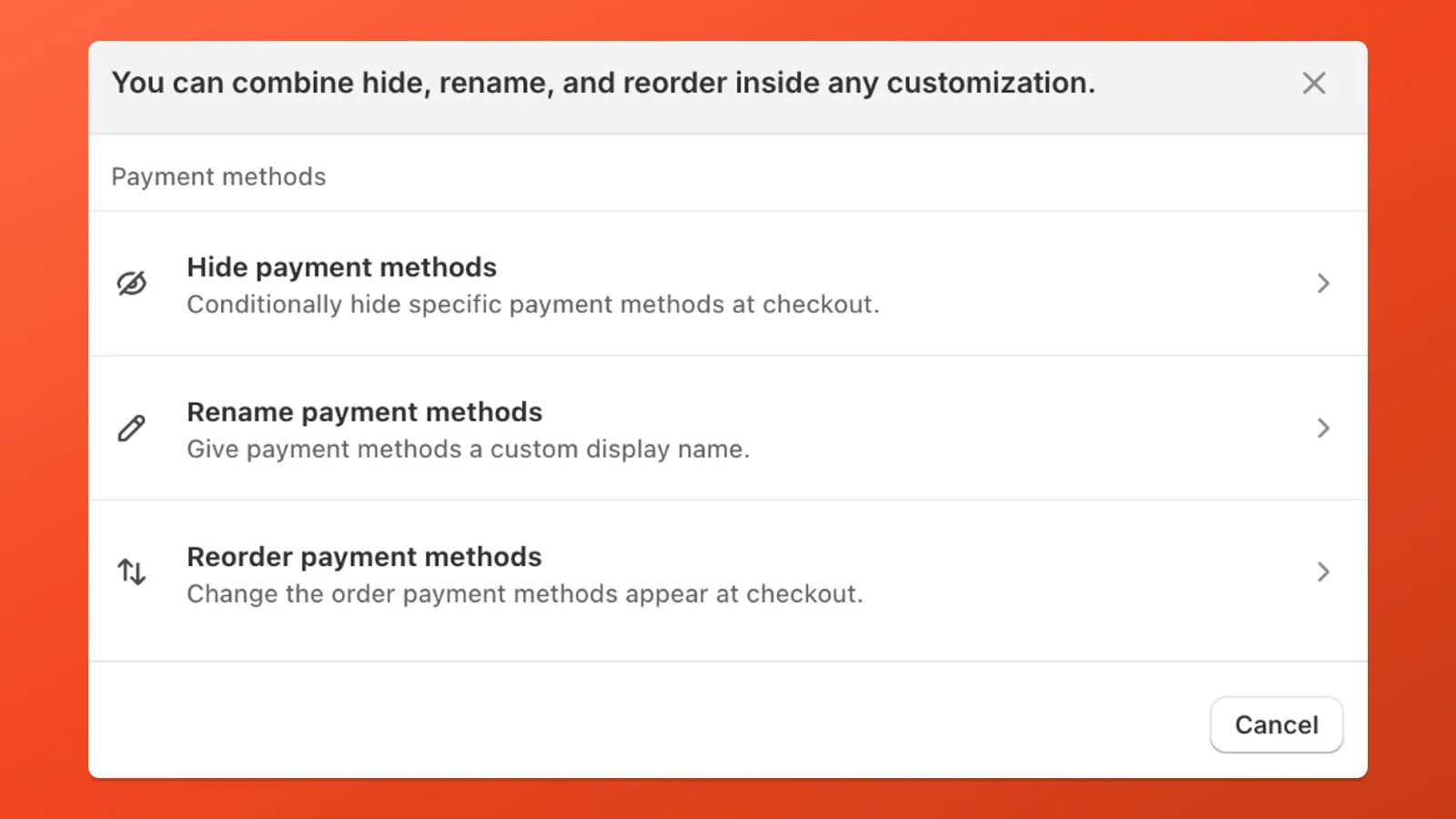
What a Payment Customization includes
Section titled “What a Payment Customization includes”Each Payment Customization includes:
- One or more enabled actions — in the sidebar, tick Hide payment methods, Rename payment methods, and/or Re-order payment methods, then configure each action’s targets (you can hide several methods in one rule with + Add payment method)
- Optional conditions — under When the following conditions are met, click + Add AND condition to add another row that must also be true, or + Add OR group to start a new branch (the rule runs when any branch matches)
- One evaluation — when your conditions match, every enabled action in the customization runs together
Payflow activates each customization as a native Shopify Function, so rules are evaluated in real time before the checkout page renders.
Not every mix of conditions can live in a single rule: Shopify Functions only receive certain checkout inputs per extension. Payflow maps your rule to the right extension and filters the condition picker accordingly. See Condition Sets for why sets exist and how Set 6 — Combined unlocks many cross-category combinations.
Create a Payment Customization
Section titled “Create a Payment Customization”- In Payflow, click Create customization and select Payment Customization.
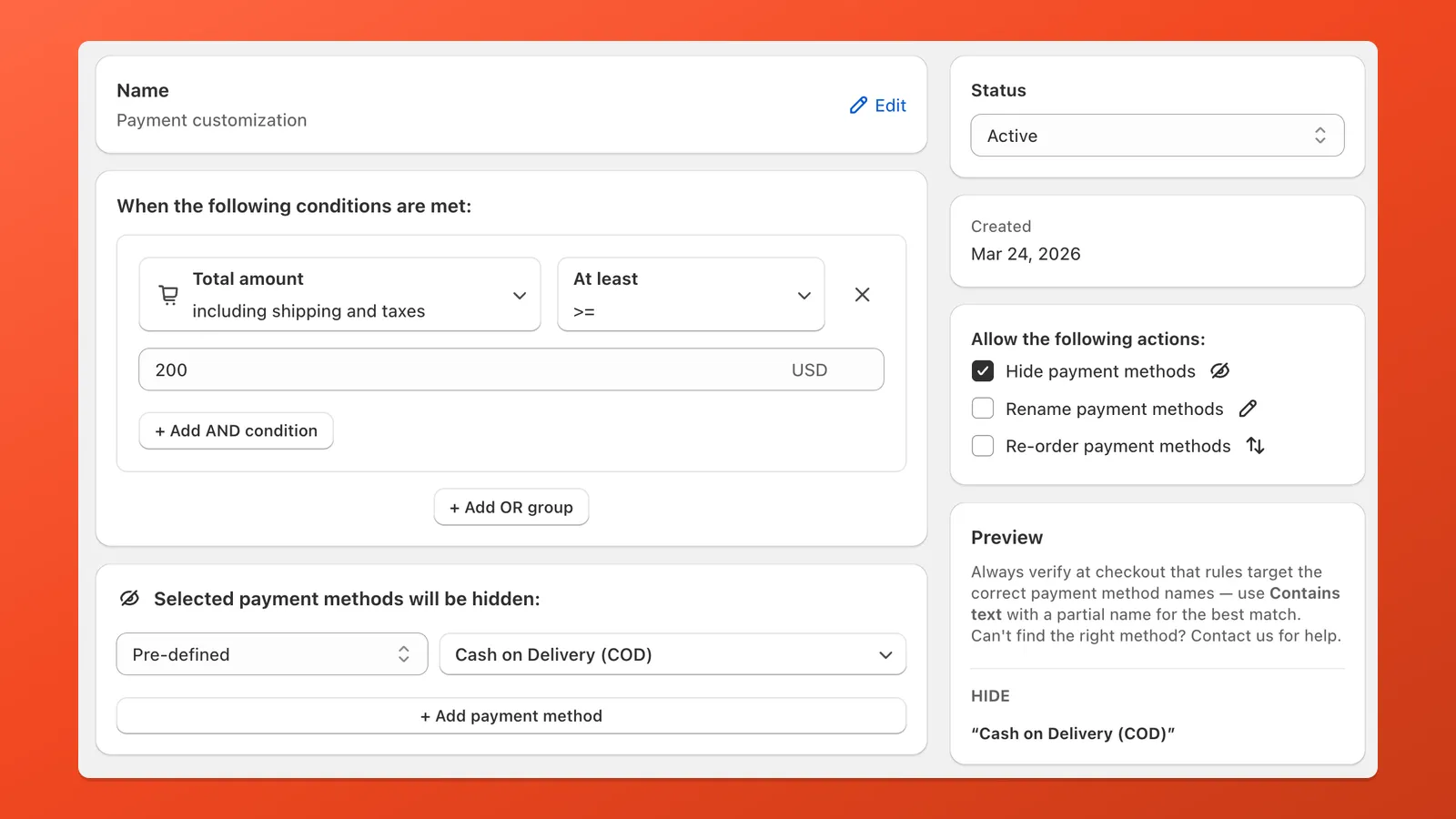
- Enter a name that describes the rule (e.g. “Hide COD for orders over $200”).
- In the sidebar under Allow the following actions, enable Hide payment methods, Rename payment methods, and/or Re-order payment methods, then fill in each action’s settings in the main panel.
- Optionally add conditions under When the following conditions are met. To stack requirements, click + Add AND condition. To add an alternative branch, click + Add OR group (see Conditions).
- Check the preview in the sidebar, then click Save.
Hide a payment method
Section titled “Hide a payment method”What it does
Removes the payment method from checkout so customers cannot select it.
When to use
- Remove methods that are not valid for certain countries, order values, or customer types
- Temporarily disable a provider without changing Shopify payment settings
- Narrow checkout to a subset of methods using Text does not contain (show-only style rules)
How to target
| Mode | When to use |
|---|---|
| Pre-defined | Pick from Payflow’s built-in list of 60+ providers (Stripe, PayPal, Klarna, etc.). Matching uses the provider name Shopify exposes. |
| Text contains | Hide any method whose label contains your text (case-insensitive). Good for custom gateways or names not in the pre-defined list. |
| Text does not contain | Hide methods that do not contain your text — useful as a filter to show only methods that match a keyword. |
| Equals to | Hide only when the method name equals your text exactly (same idea as an exact string match). |
When the method you care about appears in Payflow’s Pre-defined list, start there — matching follows the provider labels Shopify uses. If it is missing or the label at checkout looks different, fall back to Text contains or Equals to using the customer-visible name.
Rename a payment method
Section titled “Rename a payment method”What it does
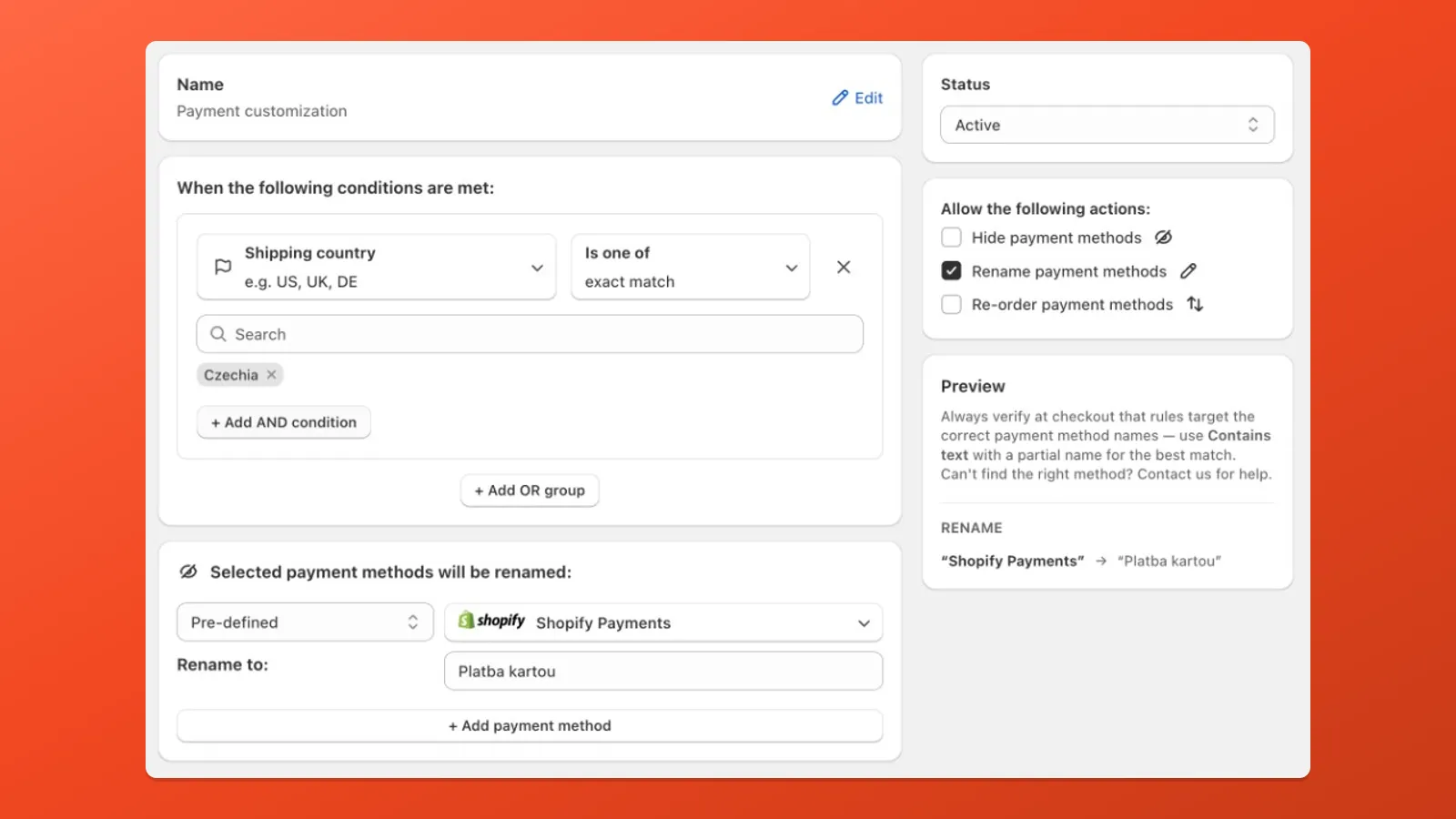
Changes the customer-facing label of a payment method at checkout.
When to use
- Translate or localize names for a market
- Add short instructions next to a method (e.g. bank transfer details in the title)
- Replace cryptic gateway labels with clearer text
How to target
Same modes as Hide: Pre-defined, Text contains, Text does not contain, Equals to.
Shopify does not allow editing the display name for every payment surface: methods that render as brand logos in checkout keep their platform-controlled label even when you add a rename action in Payflow.
For example, rename a method only for certain customers by adding a condition such as Shipping country → Is one of → Czechia. You can use Shopify Market or Checkout language instead if that better matches how you segment shoppers (same rename action; different condition).
Reorder payment methods
Section titled “Reorder payment methods”What it does
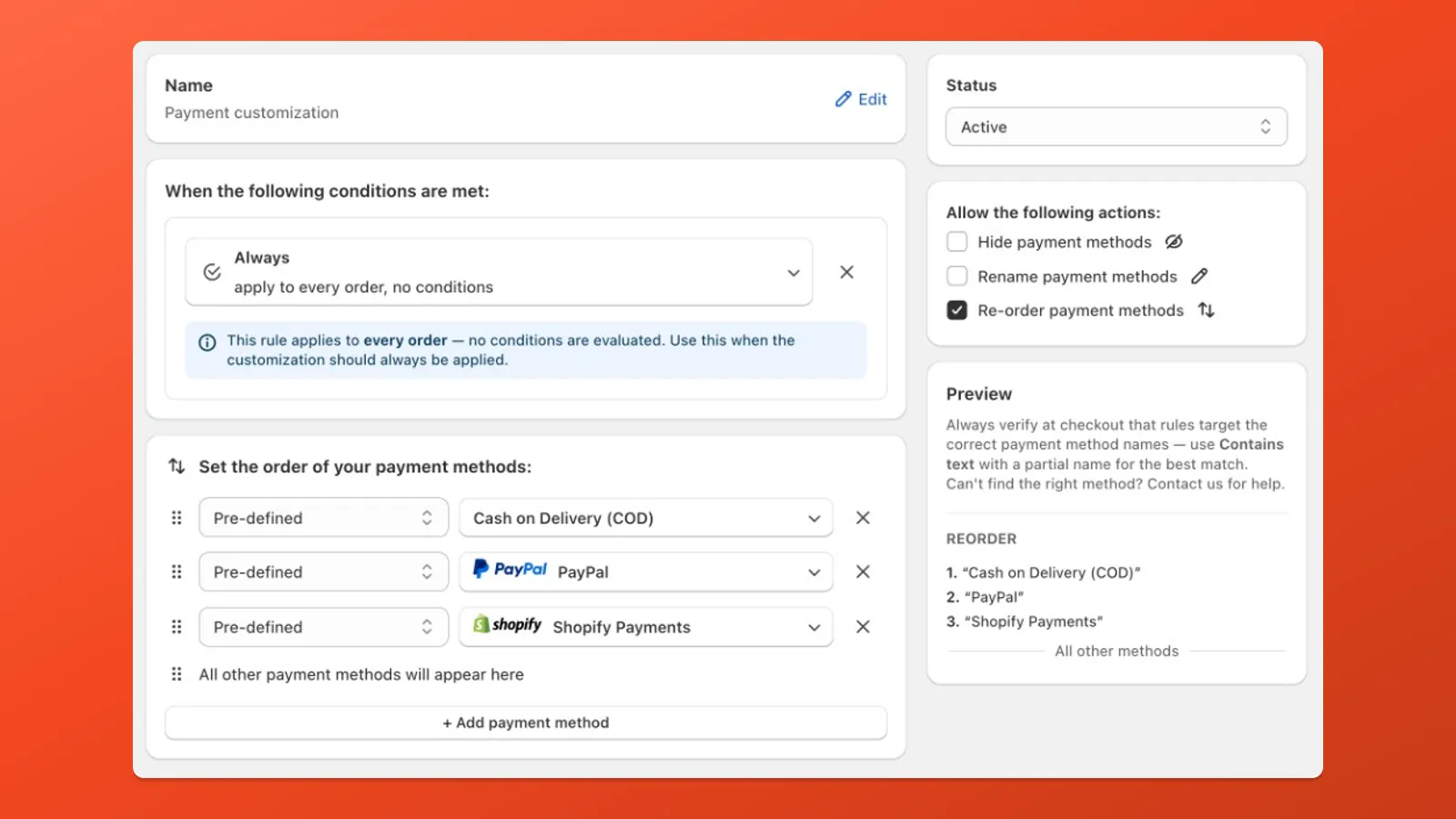
Changes the position of a payment method in the checkout list.
When to use
- Put the preferred or default method first
- Move niche methods lower without hiding them
- Align order with your checkout conversion goals
Options
- Move to top — first in the list
- Move to bottom — last in the list
- Move to position — fixed index (1 = first)
Re-order applies to the main payment method list. Some methods also surface in Shopify’s separate Express row; that row follows different rules than the standard list.
Conditions
Section titled “Conditions”Conditions sit under When the following conditions are met. They decide when your enabled sidebar actions run.
The + Add AND condition and + Add OR group buttons
Section titled “The + Add AND condition and + Add OR group buttons”These controls appear below your condition rows (labels include the leading +).
- + Add AND condition — click to add another condition in the same branch. Every row in that branch must be true (logical AND). Example: country is United Kingdom and total amount is at least £100.
- + Add OR group — click to start a new branch. The customization runs when any one branch matches (logical OR between branches). Inside each branch, use + Add AND condition again to stack more requirements.
Example for “US or Canada, and order over $100”: build one branch (country US and amount ≥ 100), click + Add OR group, then build a second branch (country Canada and amount ≥ 100).
Another pattern: hide a method when either the order is above a value or the shipment is outside a country — e.g. Total amount (including shipping and taxes) ≥ 200 USD in one branch, OR Shipping country Is not any of India in a second branch, then hide Cash on Delivery (COD) under Pre-defined.
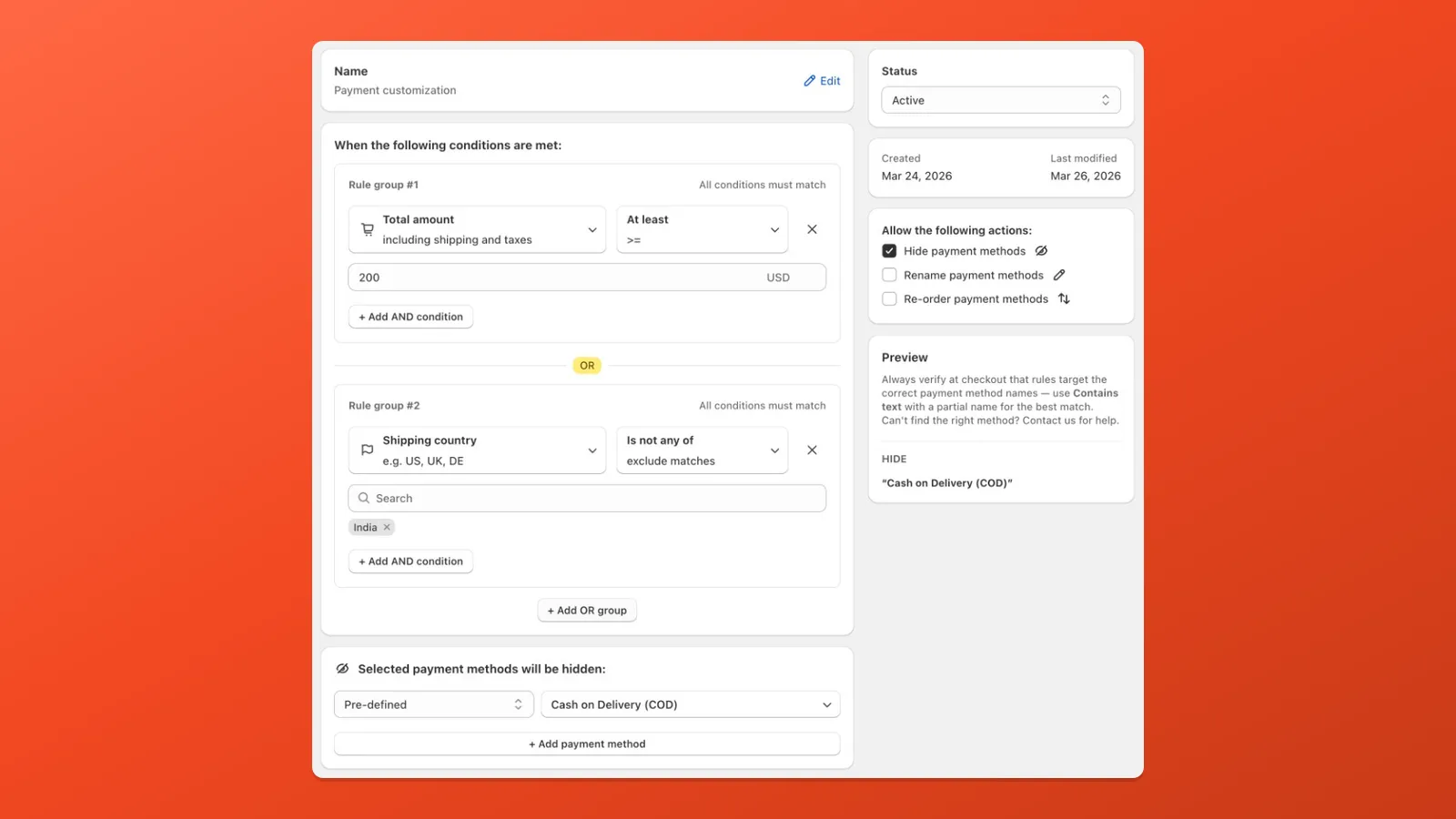
If you only need one chain of requirements, stay on a single branch and use + Add AND condition when you need more than one row.
Condition sets (combined rules)
Section titled “Condition sets (combined rules)”Conditions belong to sets tied to Shopify Function inputs. Payflow only allows combinations that share a compatible set; the condition dropdown updates as you select conditions so invalid mixes never appear. Set 6 — Combined covers many popular cross-category mixes. Details: Condition Sets.
Condition categories
Section titled “Condition categories”| Category | Examples |
|---|---|
| Cart & Order | Total amount, subtotal, weight, quantity, product, tag, collection |
| Product Attributes | SKU, vendor, product type, metafields, gift card, line item price |
| Shipping Address | Country, city, postcode, province, company, shipping method |
| Customer | Tags, email, lifetime spend, order count, B2B, metafield |
| Discounts | Discount amount, discount percentage |
| Localization | Shopify Market, checkout language |
Multiple actions in one customization
Section titled “Multiple actions in one customization”Each customization has one block of conditions — When the following conditions are met. When that block matches a checkout, every action you enabled in the sidebar runs together. You cannot assign different conditions to different actions inside the same customization.
You cannot combine opposite “when” logic in one rule. For example, you cannot do both of these in a single customization:
- Hide “Bank Transfer” when shipping country is not Czech Republic
- Rename “Bank Transfer” when country is Czech Republic
Those need two separate customizations, each with its own conditions.
When multiple actions do make sense: they share the same “when”. Examples: rename one method and re-order several for the same checkout scenario; when total amount is above a threshold, hide COD and hide another method; or, under one market condition, re-order two different methods. Each action can target a different payment method as long as they should all apply under the same evaluation.
Supported payment providers
Section titled “Supported payment providers”Payflow includes 60+ predefined providers. Anything not listed can still be targeted with Text contains or Equals to. Edge cases (for example methods that cannot be renamed) are covered in Limitations.