Duplicate, Export & Import Customizations
More actions — duplicate, export, replicate, and the rest — is available on the saved customization page when you open a rule, and from the dashboard table (each row’s menu) without opening the editor first.
More actions menu
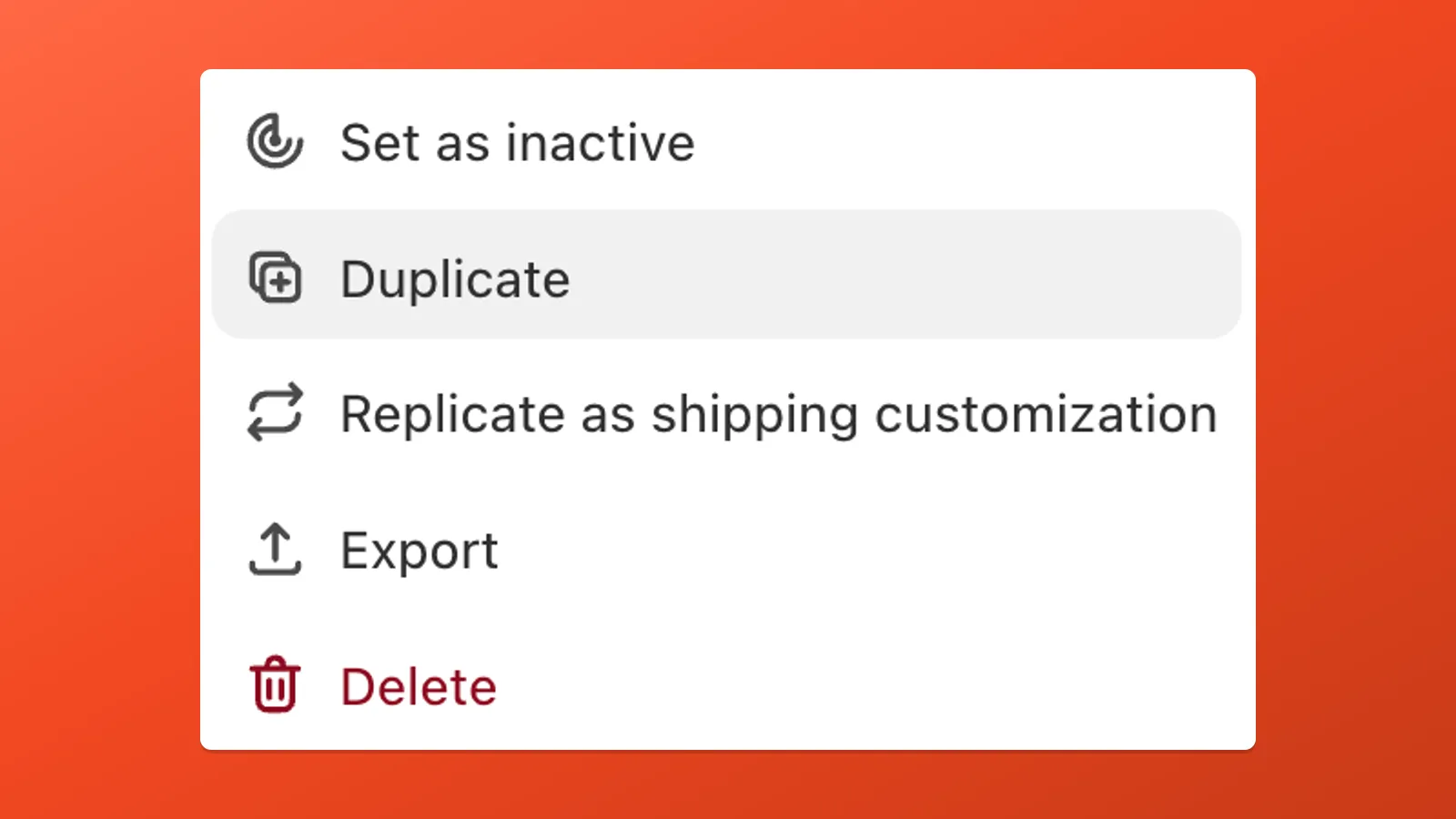
Section titled “More actions menu”Open More actions from either place to see:
| Action | What it does |
|---|---|
| Set as inactive / Set as active | Toggles whether the rule runs. For an active rule, the menu shows Set as inactive; for an inactive rule, it shows Set as active. Nothing is deleted. |
| Duplicate | Creates a second customization of the same type (Payment, Delivery, etc.) with the same configuration. Edit the copy independently. |
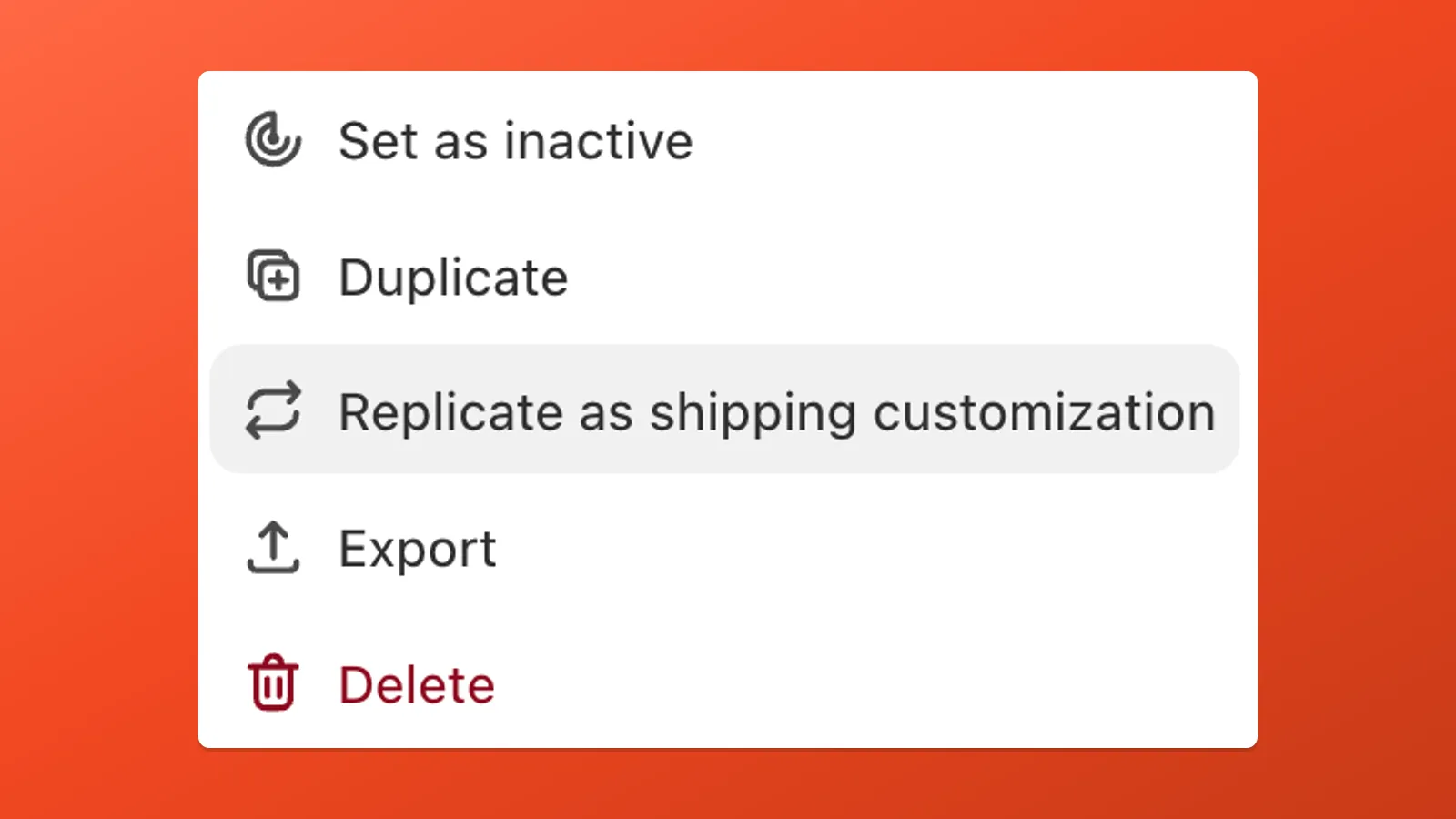
| Replicate | Copies conditions and their values to the other type (menu: Replicate as shipping customization from Payment, or Replicate as payment customization from Delivery). You still choose payment method names or shipping rate names for Hide / Rename / Re-order — those strings differ between layers. |
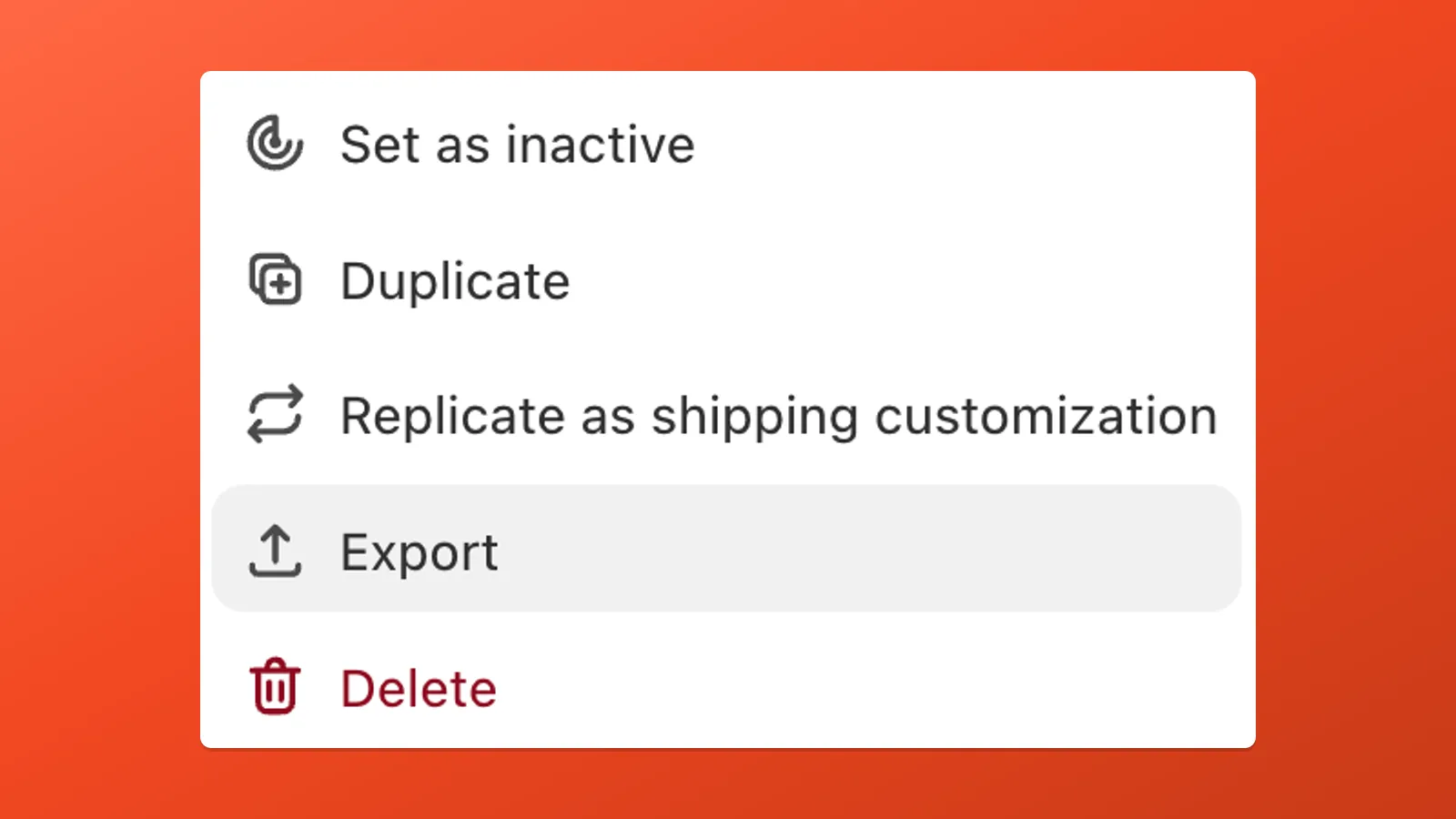
| Export | Downloads the customization as a JSON file — archive, share, or Import existing to load it again. |
| Delete | Removes the customization permanently. |
Duplicate
Section titled “Duplicate”Use Duplicate when you want two similar rules of the same kind — for example a second Payment Customization with a small change — without rebuilding conditions from scratch.
Replicate
Section titled “Replicate”Replicate mainly copies conditions and their values into a new customization of the opposite type. It does not carry over which payment methods or shipping rates you target — names and picker options differ between Payment and Delivery — so you must enter or select the right payment method or shipping rate labels for Hide, Rename, or Re-order in the new editor.
The menu label depends on where you start:
- From a Payment Customization → Replicate as shipping customization → new Delivery Customization with the same conditions; add delivery actions (for example Hide on specific shipping rates).
- From a Delivery Customization → Replicate as payment customization → new Payment Customization with the same conditions; add payment actions (for example Hide on Cash on Delivery).
Use it when totals, country, cart contents, or other rules should line up on both payment methods and shipping — not only one side. A common pattern with Cash on Delivery Setup is hiding COD as a payment method and also hiding the COD shipping rate that carries the fee, so shoppers cannot pick the rate on ineligible carts.
Export
Section titled “Export”Export saves the rule as a JSON file. Import existing on the Payflow dashboard reads that same format: choose the file and Payflow recreates the customization. That is useful for copying the same rules to another store, for backups, or for advanced workflows where a developer edits the JSON before import. Create customization still starts a blank rule from scratch.
Import existing and Create customization sit above the dashboard table of saved customizations.