Add a Surcharge for a Specific Payment Method
Shopify cannot add a fee to a payment method directly. The workaround: create a shipping rate that carries the fee, then use two Payment Customizations to wire the right payment method to that rate.
How it works
Section titled “How it works”Create the shipping rate in Shopify
Open Shopify admin → Settings → Shipping and delivery. Add a rate with a clear title (e.g. “Standard + Tabby fee: $3”). Optionally set Rate type → Order amount with tiers to approximate a percentage.
Rule 1 — Hide the payment method when the fee rate is not selected
- When: Shipping method name → Is not any of → the fee rate title.
- Hide: the target payment method.
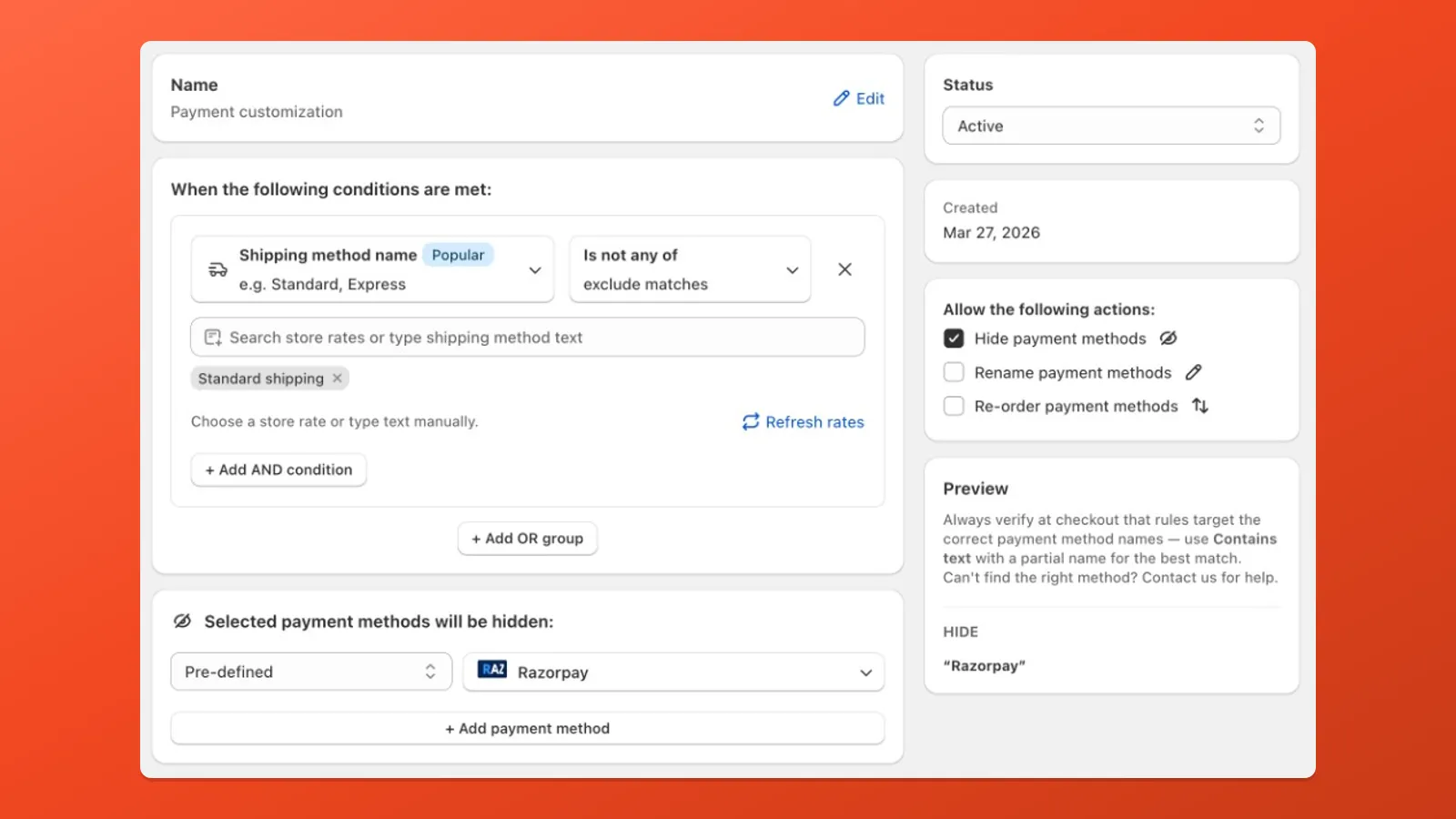
Hide the target method when the customer has not picked the fee rate Rule 2 — Hide other methods when the fee rate is selected
- When: Shipping method name → Is one of → the same fee rate title.
- Hide: Does not contain text → a substring unique to your method.
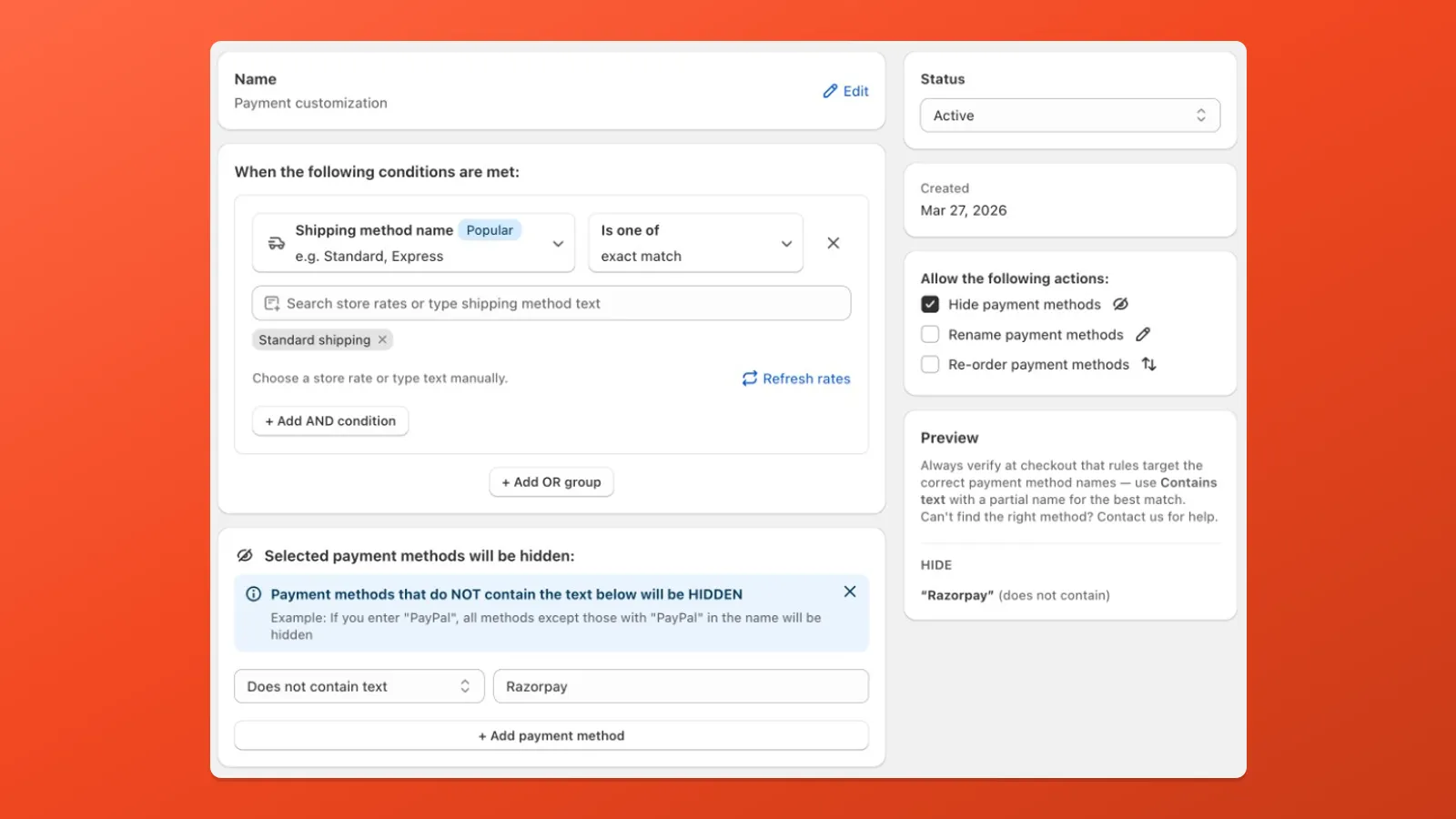
When the fee rate is selected, hide every payment method except the target - Active, Save both, and verify at checkout.
Both rules are required: Rule 1 prevents the method from showing on other rates; Rule 2 locks checkout to only that method when the fee rate is selected. For a full walkthrough with worked examples, see Tiered fees — other payment methods.