Fee percentage
Target effective rate as a percent (e.g. 5).
Shopify cannot charge shipping as a percentage of the cart — each tier stores a flat price only. Merchants still model “higher order value → higher fee” with Rate type → Order amount on a shipping rate.
Checkout is usually shipping before payment: the rate the customer picks must line up with the payment methods they’re allowed to use. This page is split so you can jump to the path you need:
For COD, the fee lives in a separate COD shipping rate (flat or tiered). Cash on Delivery Setup then links that rate to Shopify’s Cash on Delivery (COD) manual method — one guided flow, no manual Payment Customization.
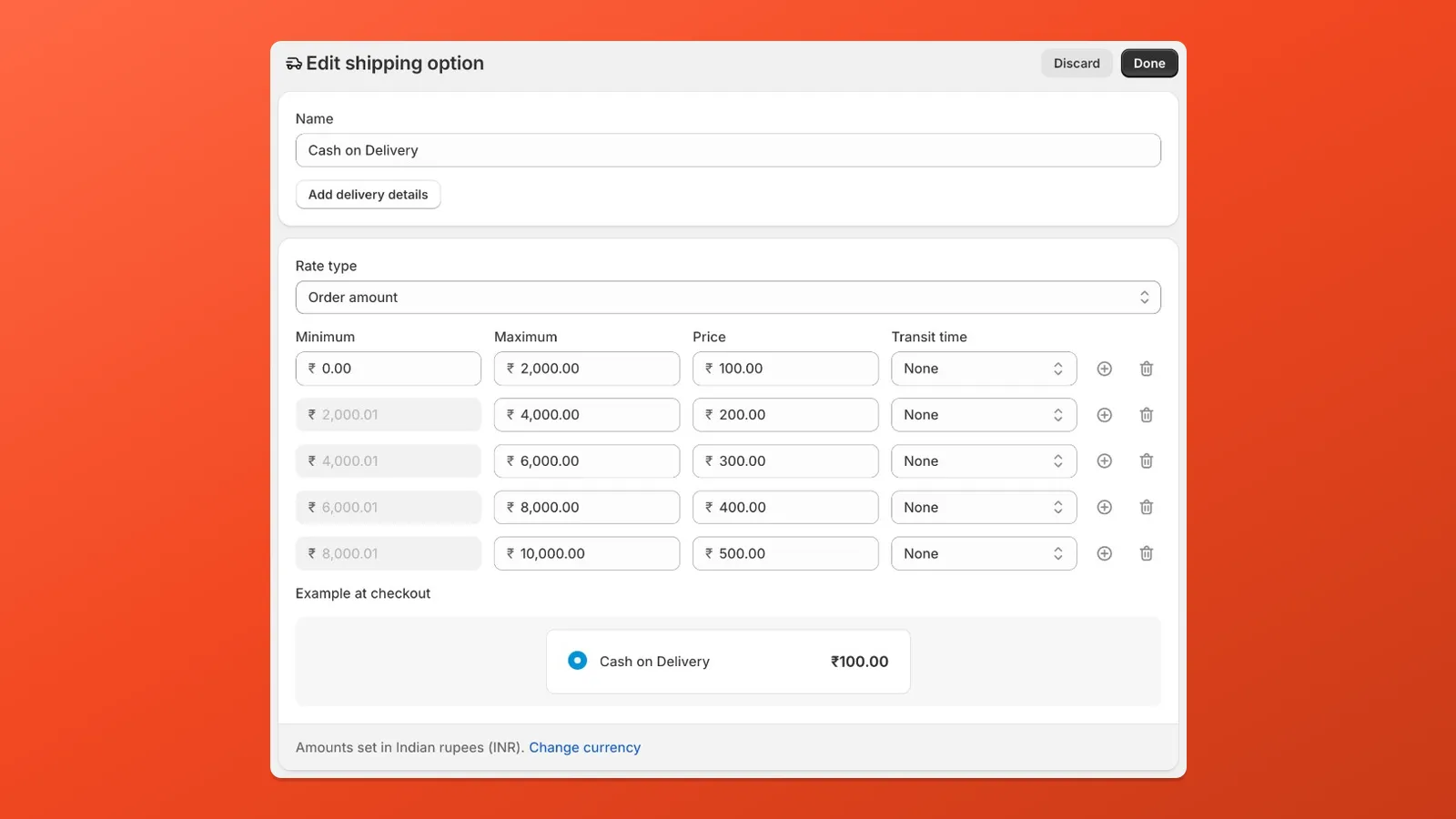
Edit the COD (or any) shipping rate that should scale with cart value:
Fee percentage
Target effective rate as a percent (e.g. 5).
Max order value
Top of the last tier — use your store currency.
Base shipping fee (optional)
A fixed amount added to every tier (e.g. real postage). Use 0.00 if the whole charge should come only from the percentage-style bands.
Tiers
How many order-amount bands to generate (e.g. 5 tiers).
You get a Minimum, Maximum, and Fee (flat) table, a footer summary, Copy as spreadsheet, a short example callout, and How to apply these tiers — all in one screen. Open the tool from the Help center or while editing Cash on Delivery Setup.
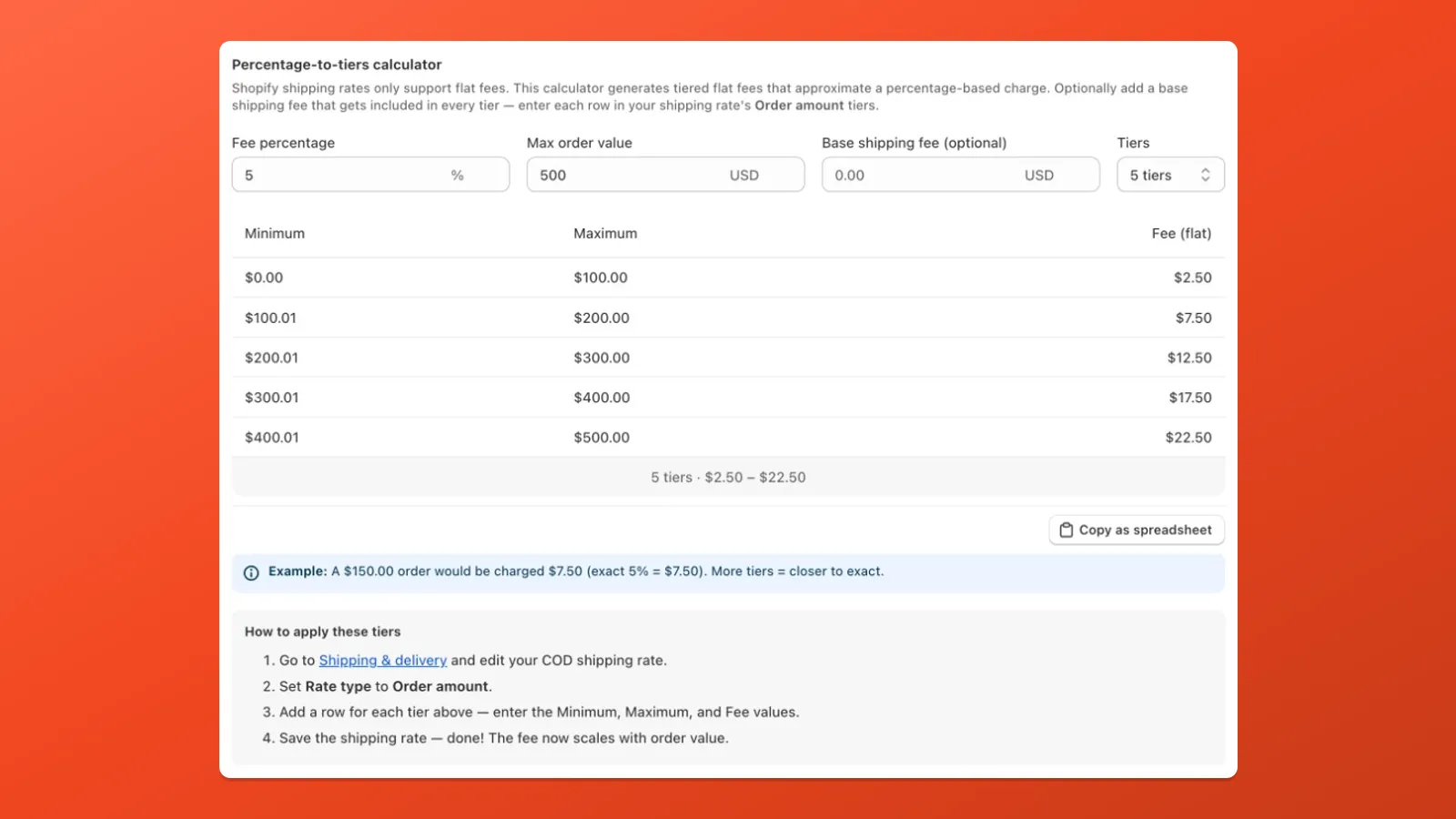
Copy each row’s Fee into Shopify’s Price for that tier, then Save. Tiers are fixed in the profile (not a live % each checkout) — see Limitations — No percentage-based fee on cart value.
Finish in Cash on Delivery (COD) Setup: add keywords that match your COD rate name(s), confirm the COD manual payment method, set Active, and Save. Payflow shows COD only when the customer selects a matching shipping rate.
Shopify: Same as above — one named rate per checkout path and optional Order amount tiers.
Payflow: No dedicated wizard — you build two Payment Customizations yourself (Payflow Pro). Both use Hide payment methods only:
Condition type: Shipping method name. Match the customer-visible title (use Contains text or Refresh rates if admin and checkout differ). Create the shipping rate in Shopify first.
Hide the target method when shipping is wrong
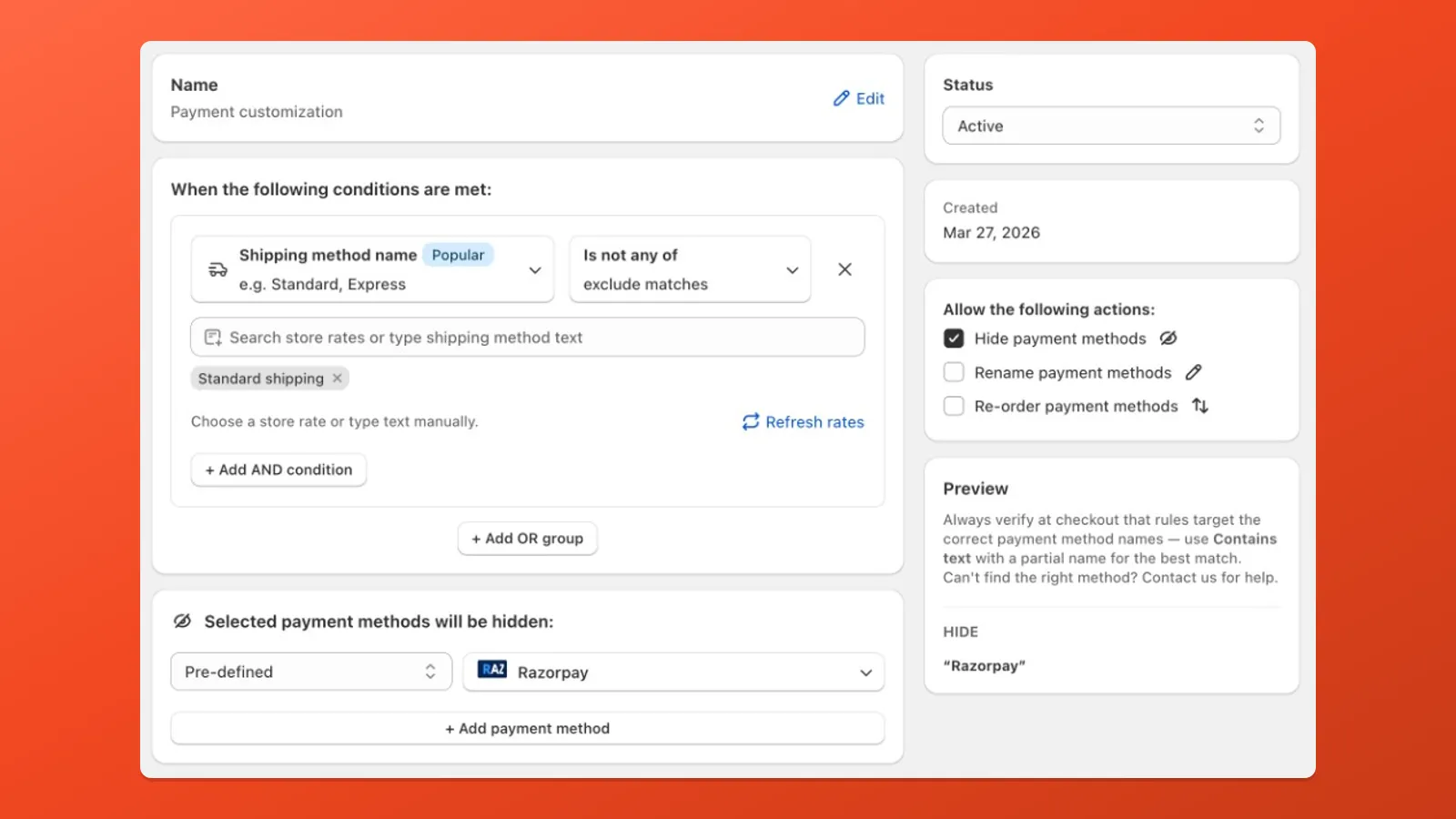
Example above: Razorpay is only allowed when Standard shipping is selected; this rule hides Razorpay whenever shipping is anything else.
On that rate, hide everything except the target method
Razorpay).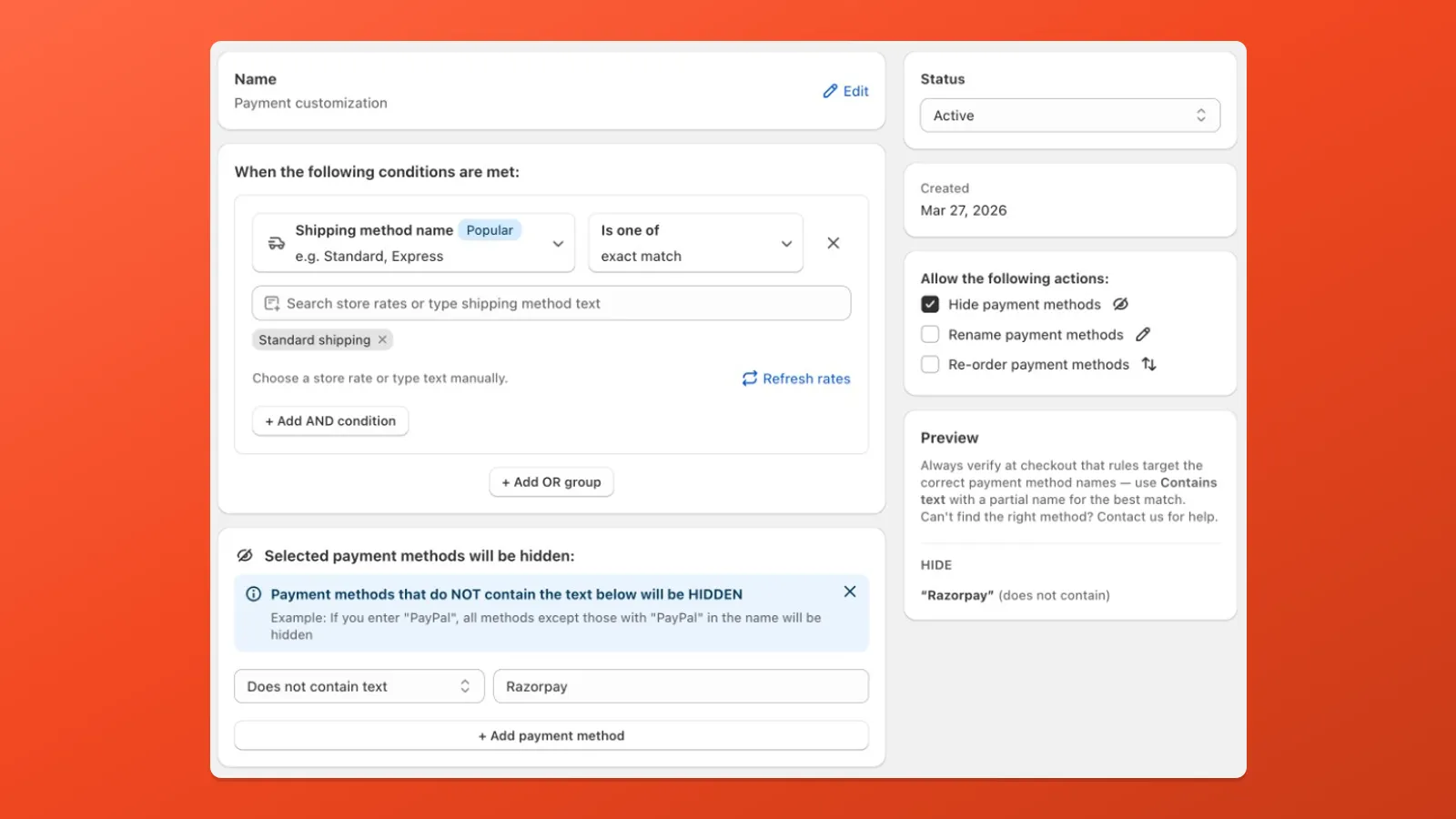
Example above: once they’re on Standard shipping, strip out cards, COD, and other gateways so only Razorpay remains.
COD Setup does both ideas for COD in one place. For everything else, keep both customizations. In the screenshots, swap Standard shipping / Razorpay for your real rate name and checkout label.