Payment Instructions
Payment Instructions show custom text below a chosen payment method during Shopify checkout. They are often used for bank transfer details, Cash on Delivery notes, or B2B wording. The main feature — payment QR codes on the Thank You page — is available for Czechia and Slovakia only.
For CZ/SK stores, Payflow can show a payment QR code on the Thank You page after checkout when you use the options described below — so customers can scan to pay without retyping account numbers or references.
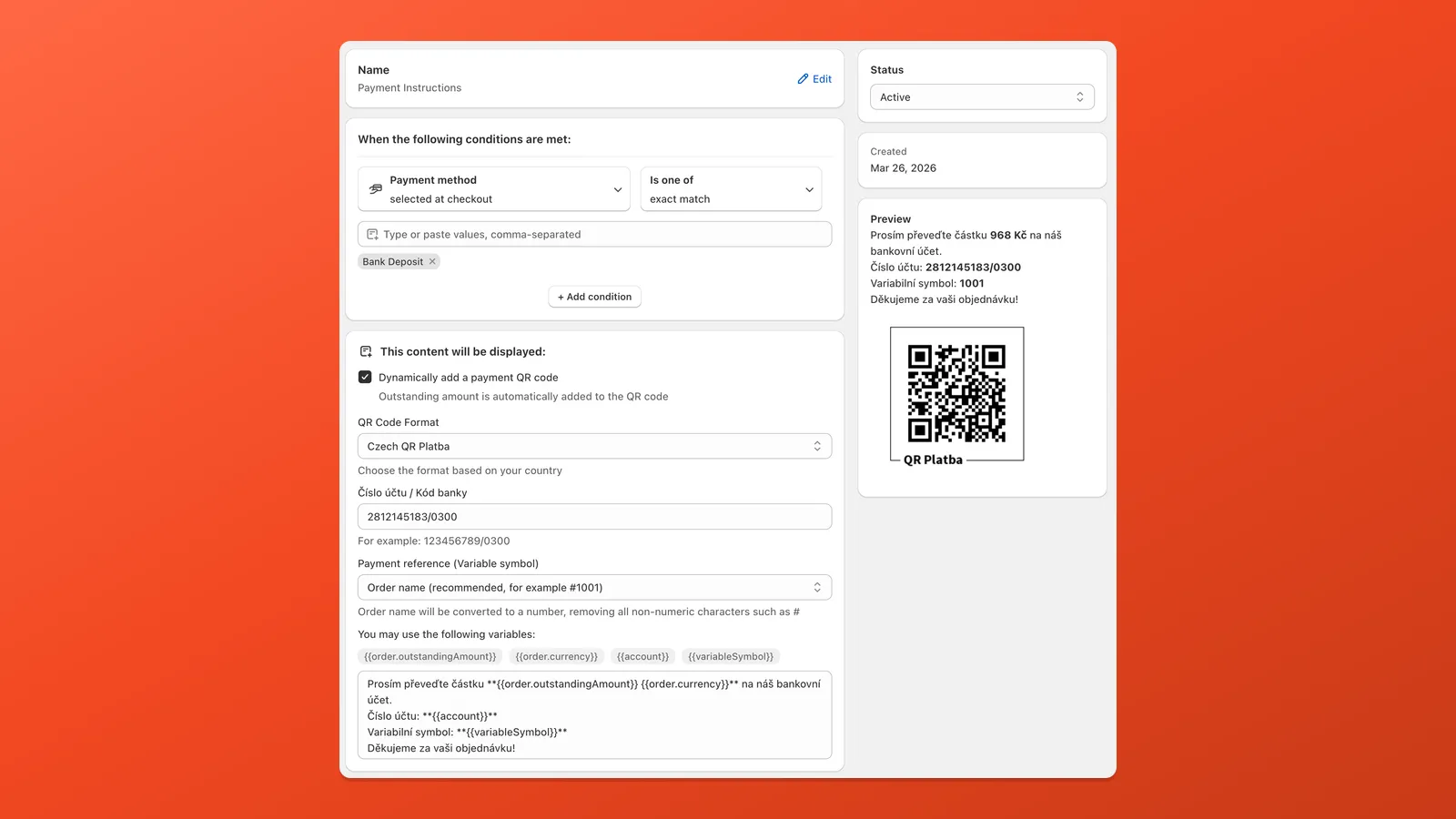
QR code for bank transfers Czechia & Slovakia
Section titled “QR code for bank transfers ”Set up QR payment instructions in Payflow
Section titled “Set up QR payment instructions in Payflow”Payflow prefills most fields for bank-transfer QR. What you must enter is your Czech account number and bank code or Slovak IBAN, plus a payment reference (variable symbol) — order name is recommended so it matches Shopify admin. Everything else is optional: tweak the instruction text, add Shipping country if you only want the rule in CZ/SK, or leave defaults as they are.
- In Payflow, click Create customization → Payment Instructions. Give it a clear name (e.g. “Bank transfer – CZ QR”).
- Under When the following conditions are met, target your bank deposit or bank transfer method — the label must match Shopify admin → Settings → Payments → Manual payment methods.
- Optional: add Shipping country → Is one of → Czech Republic, Slovakia (or separate rules per country) so this instruction only runs where Payflow can show a QR on the Thank You page.
- Under instruction content, turn on Dynamically add a payment QR code (exact wording may match your app version). Choose QR format: Czech (QR Platba / CZK) or Slovak (EUR IBAN).
- Enter account number and bank code (Czech) or IBAN (Slovakia), and set variable symbol / payment reference — order name is recommended.
- Optional: adjust the instruction text; use placeholders such as
{{order.outstandingAmount}}only when the editor lists them. - Click Save in Payflow, then open the Thank you page in Shopify’s checkout editor (use Payflow’s link if it offers one, or go to Settings → Checkout → Customize). Under Apps → Payflow, add Payment instructions (Thank you) to the layout, place it where you want the payment copy and QR to appear, and click Save on the checkout. The Thank You QR only shows after this block is on the page.
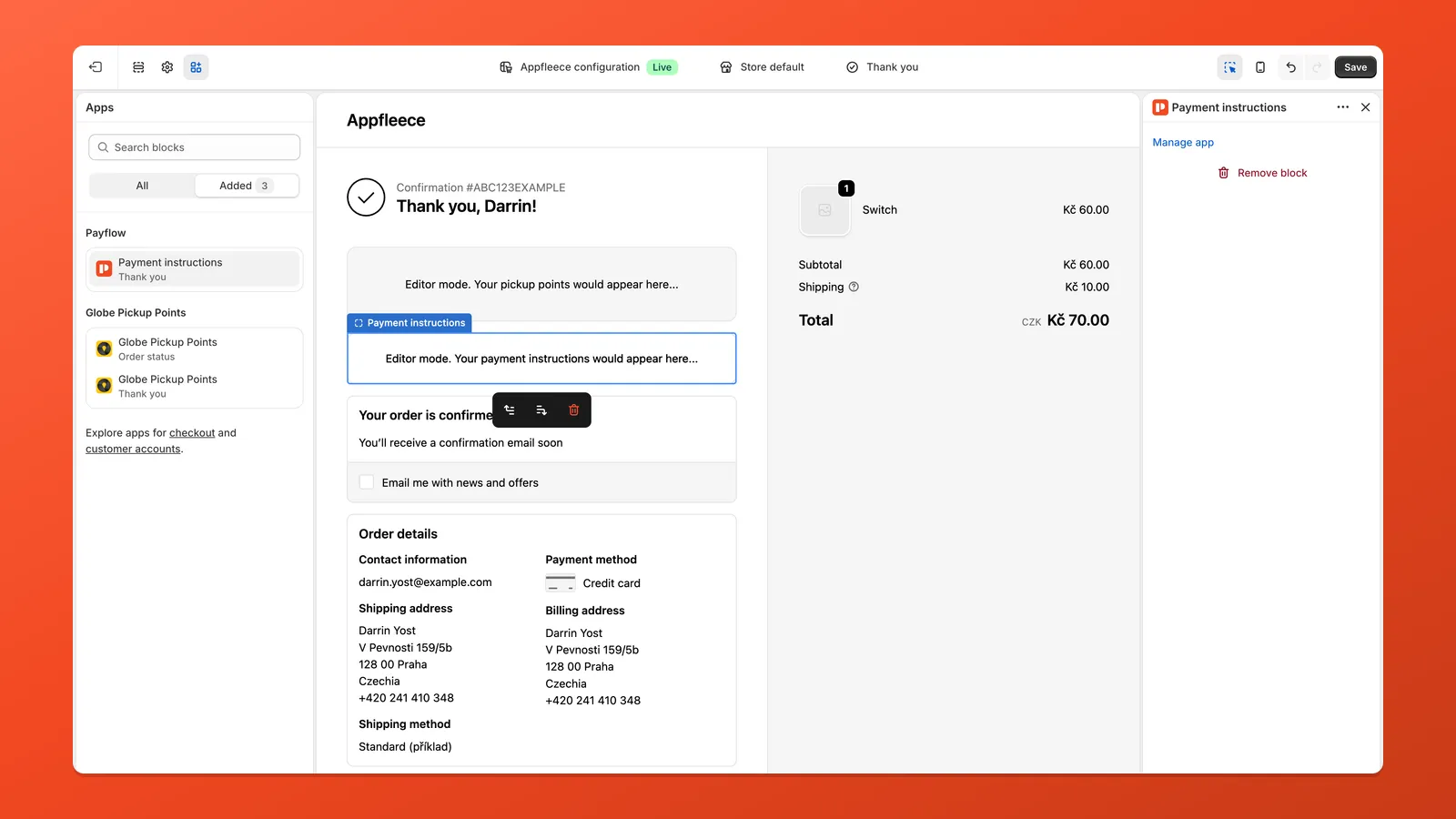
- Place a test order with bank transfer selected and scan the QR in your banking app to confirm amount, account, and reference.
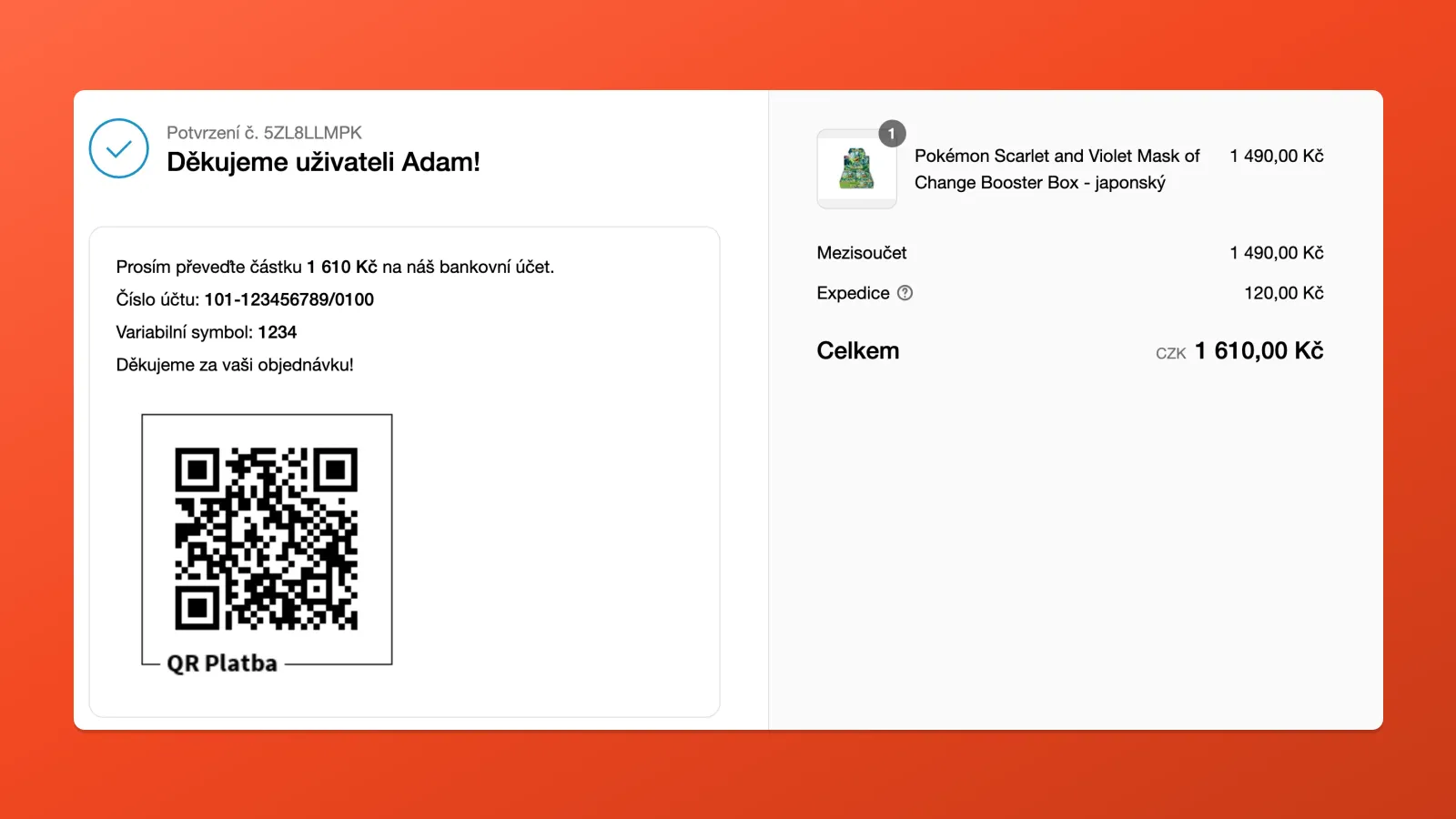
After checkout: Thank You page
Section titled “After checkout: Thank You page”When the customer pays with bank deposit / bank transfer and your instruction applies, the Thank You page (Czechia and Slovakia only) can show the same payment copy plus the QR code — as in the preview after step 8.
Targeting a payment method
Section titled “Targeting a payment method”At checkout, instructions show for the payment method you tie to the rule (e.g. Bank Deposit). You can match by name or choose a predefined provider when the app offers it.
Instruction text
Section titled “Instruction text”For QR bank transfer, Payflow usually provides sensible default copy at checkout — you can leave it or shorten it. The editor may offer placeholders (amount, currency, account, reference, and similar) — use only tokens your Payflow UI lists.
Generic examples (no QR):
Please transfer €X to IBAN: … Use your order number as the reference.Cash on Delivery: a collection fee applies — see shipping line.
Conditions for Payment Instructions
Section titled “Conditions for Payment Instructions”Payment Instructions support these condition types only:
| Condition | Typical use |
|---|---|
| Always | Same instruction whenever the payment method matches |
| Shipping country | Limit bank/QR instructions to Czech Republic, Slovakia, or other countries |
| Payment method | Require a specific method (e.g. bank deposit) to be selected at checkout |
Examples:
- Bank transfer + QR for CZ/SK: Payment method includes your bank method and Shipping country → Is one of → Czech Republic, Slovakia (if you want to restrict by country).
- Single global bank message: Payment method → your bank method, plus Always or Shipping country as needed.
Multiple languages or markets
Section titled “Multiple languages or markets”Create one Payment Instruction per language or country group, each with its own conditions and text. Payflow chooses the matching instruction from the order/payment context; for country-specific variants, it uses the order shipping country when available and can fall back to currency when country data is unavailable.
- Bank transfer – Czech — Shipping country → Is one of → Czech Republic → Czech text (and Czech QR settings).
- Bank transfer – Slovakia — Shipping country → Is one of → Slovakia → Slovak text (and Slovak / IBAN QR settings).
If the editor also offers Shopify Market for Payment Instructions, you can scope variants by market; see Localization conditions for how market differs from shipping country.