COD Fee with Weight-Based Shipping
Many carriers charge by package weight, while COD collection fees often depend on order value (cart subtotal). Shopify lets each shipping rate use one rate type — Weight or Order amount — not both on the same rate.
This guide shows a practical pattern used by merchants with weight-based shipping profiles: keep your normal Weight rate, add several parallel COD rates (one per fee band) with the COD surcharge baked into every weight tier, then use Payflow to show only the COD rate that matches the cart subtotal. Pair that with Cash on Delivery Setup so COD payment appears only on those rates.
What you are building
Section titled “What you are building”At checkout the customer typically sees:
| What they see | How it is priced in Shopify | When it appears |
|---|---|---|
| Standard home delivery (prepaid) | Weight tiers — your existing carrier table | Always (unless you hide it with other rules) |
| Home delivery | COD band A | Weight tiers — same breakpoints, each price + fee A | Only when cart subtotal is in band A (Payflow) |
| Home delivery | COD band B | Weight tiers — same breakpoints, each price + fee B | Only when cart subtotal is in band B (Payflow) |
| Home delivery | COD band C | Weight tiers — same breakpoints, each price + fee C | Only when cart subtotal is in band C (Payflow) |
Payflow then:
- Cash on Delivery Setup — shows COD payment only when the customer selects a rate whose name matches your COD keyword (e.g.
COD,Utánvét). - Three Delivery Customization hide rules — each uses Subtotal amount so only one COD band is visible for the current cart.
Payflow does not calculate weight or cart total at checkout — you enter final prices in Shopify once per band.
Example fee bands (illustration)
Section titled “Example fee bands (illustration)”A merchant ships with MPL home delivery (weight tiers) and charges a flat COD collection fee by order value:
| Cart subtotal (store currency) | COD fee added on top of weight shipping |
|---|---|
| 0 – 20,000 Ft | +274 Ft |
| 20,001 – 50,000 Ft | +377 Ft |
| 50,001 – 100,000 Ft | +649 Ft |
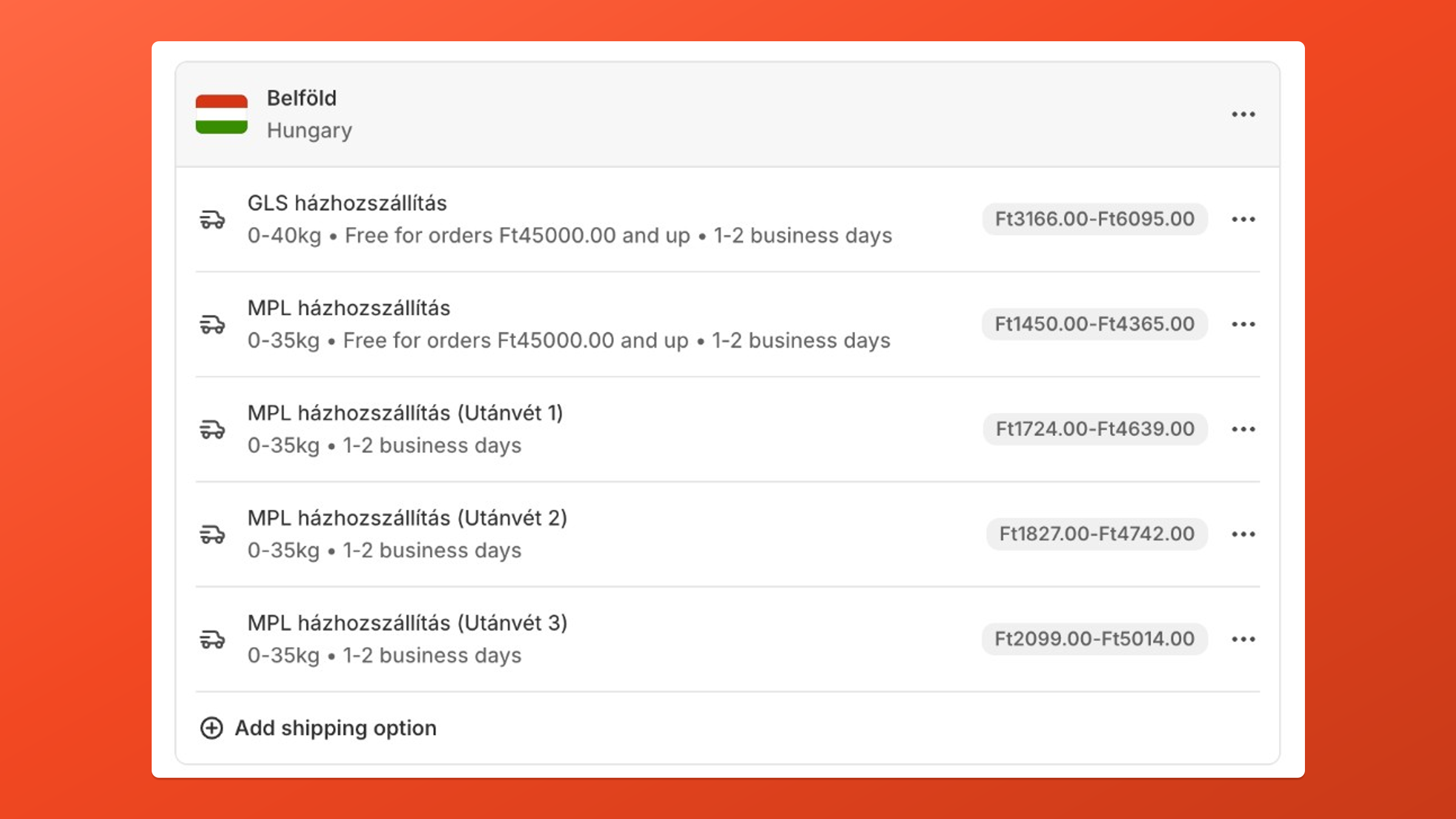
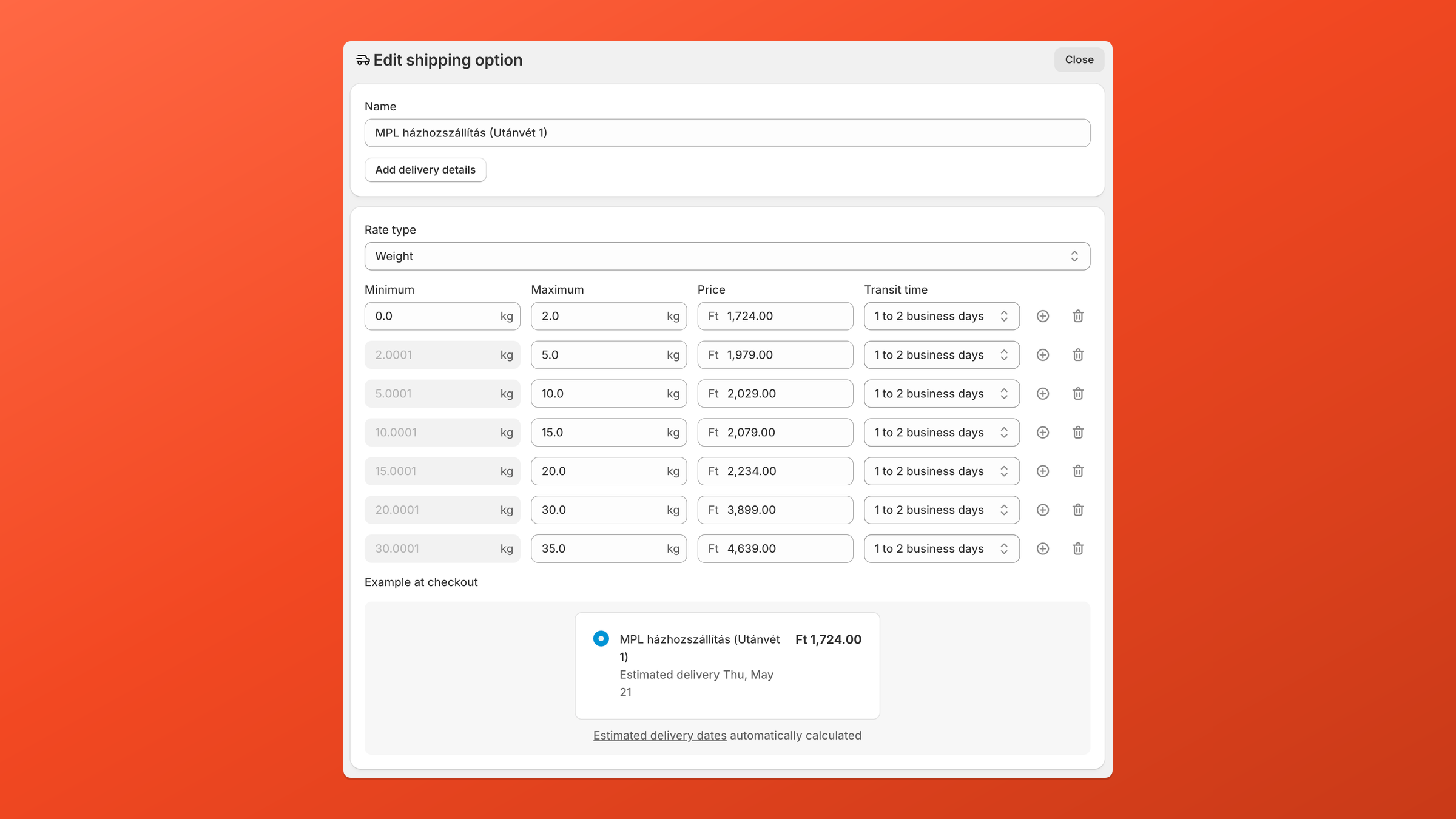
They create three COD shipping rates in Shopify (e.g. … (COD 1), … (COD 2), … (COD 3)), each with Weight tiers. For the 0–2 kg row, if the prepaid rate is 1,450 Ft, the three COD rates use 1,724, 1,827, and 2,099 Ft — the same +274 / +377 / +649 on every weight row.
Before you start
Section titled “Before you start”Gather:
- Existing weight-based shipping in Shopify (your prepaid carrier rate and its tiers).
- COD fee by cart subtotal — flat amounts per band (not percentages).
- A naming scheme so Payflow can target rates:
- Prepaid rate: no COD keyword in the title.
- Each COD band: same carrier name + a shared COD keyword + a unique band label (e.g.
MPL home delivery (COD 1)).
Step 1 — Add one COD rate per cart-value band (duplicate weight tiers)
Section titled “Step 1 — Add one COD rate per cart-value band (duplicate weight tiers)”In Shopify admin → Settings → Shipping and delivery, for each COD fee band add a new shipping rate in the same zone as your prepaid carrier rate:
- Add rate → name it clearly, e.g.
MPL home delivery (COD 1). Include your COD keyword and a band label (COD 1,COD 2, …) that other bands do not share. - Set Rate type to Weight (same as prepaid).
- Copy the same weight breakpoints as the prepaid rate.
- In every Price cell, enter prepaid price + COD fee for this band (same surcharge on every row).
- Repeat for the next band (
COD 2,COD 3, …). - Save the zone.
Price formula
Section titled “Price formula”COD band price (per weight row) = (prepaid weight price for that row) + (COD fee for that cart band)Example for the 0–2 kg row:
| Rate | Calculation | Price |
|---|---|---|
| Prepaid | — | 1,450 Ft |
| COD band 1 (cart 0–20,000) | 1,450 + 274 | 1,724 Ft |
| COD band 2 (cart 20,001–50,000) | 1,450 + 377 | 1,827 Ft |
| COD band 3 (cart 50,001–100,000) | 1,450 + 649 | 2,099 Ft |
Apply the same +274 / +377 / +649 (or your real fees) on every weight tier. Shopify stores fixed numbers — they do not auto-update if you change the formula later.
Step 2 — Link COD shipping to COD payment (Payflow)
Section titled “Step 2 — Link COD shipping to COD payment (Payflow)”Follow Cash on Delivery (COD) Setup:
- Create customization → Cash on Delivery Setup.
- Add a keyword that appears in all COD band names (e.g.
COD,Utánvét). - Confirm the Cash on Delivery manual payment method.
- Set Active → Save.
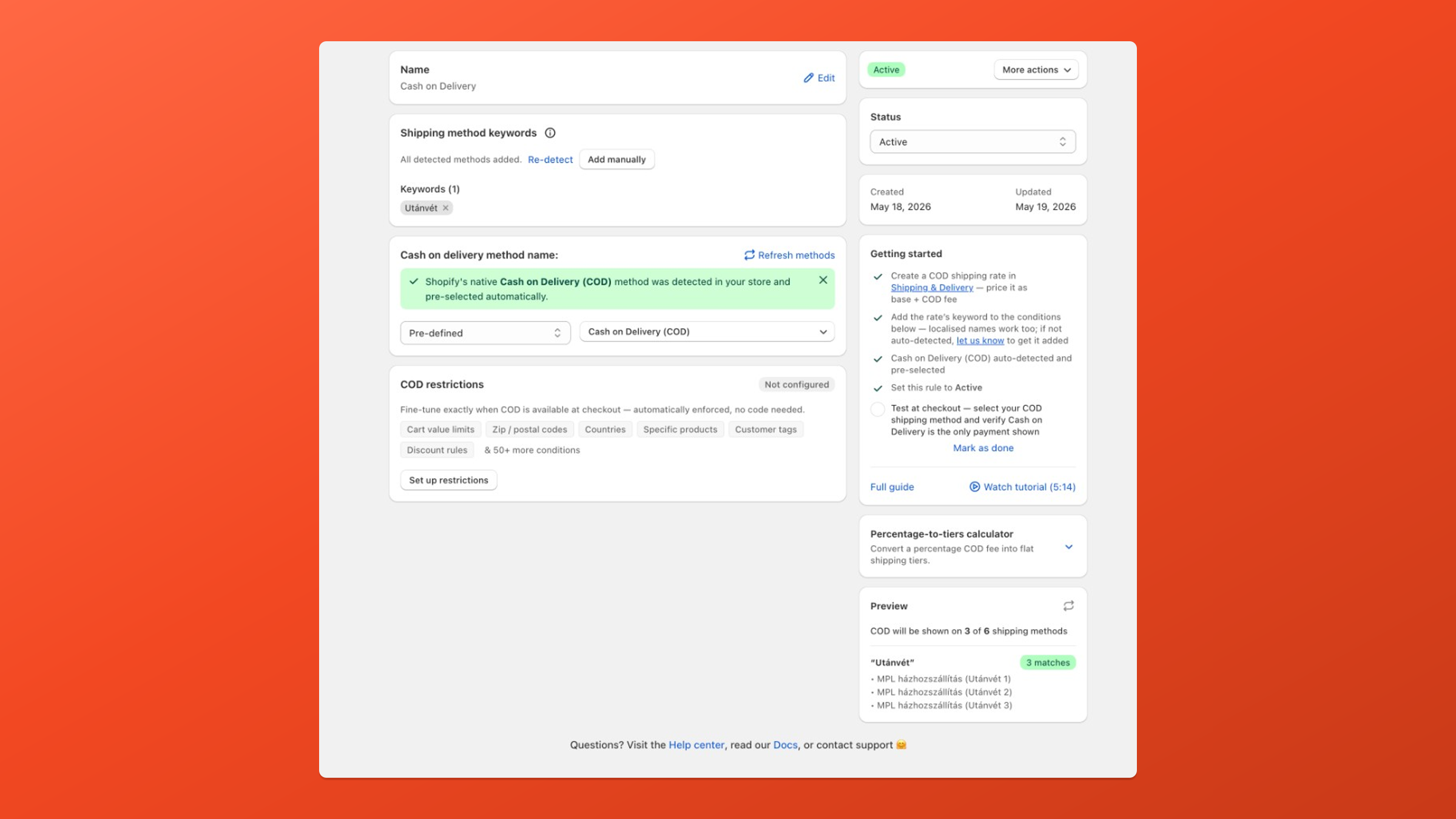
The preview should list all COD variants (e.g. three of six shipping methods). Customers still see every band until you add the hide rules in Step 3.
Step 3 — Show only the COD rate for this cart subtotal
Section titled “Step 3 — Show only the COD rate for this cart subtotal”Without this step, checkout lists every COD band at once. Create one Delivery Customization per band that hides the other COD variants using Subtotal amount (before shipping and taxes).
Pattern (three bands)
Section titled “Pattern (three bands)”| Rule name (example) | Subtotal conditions (AND) | Hide rates contains text |
|---|---|---|
| Show COD 1 only | ≥ 0 and ≤ 20,000 | COD 2, COD 3 |
| Show COD 2 only | ≥ 20,001 and ≤ 50,000 | COD 1, COD 3 |
| Show COD 3 only | ≥ 50,001 and ≤ 100,000 | COD 1, COD 2 |
Use Contains text strings that match only the bands you want to hide (see Delivery Customization — hide).
- Create customization → Hide shipping methods (repeat for each band).
- Add two subtotal conditions with AND (minimum and maximum for that band).
- Under Hide, add Contains text rows for the other COD band labels.
- Set Active → Save.
- Confirm all three rules appear under Shipping methods in Payflow.
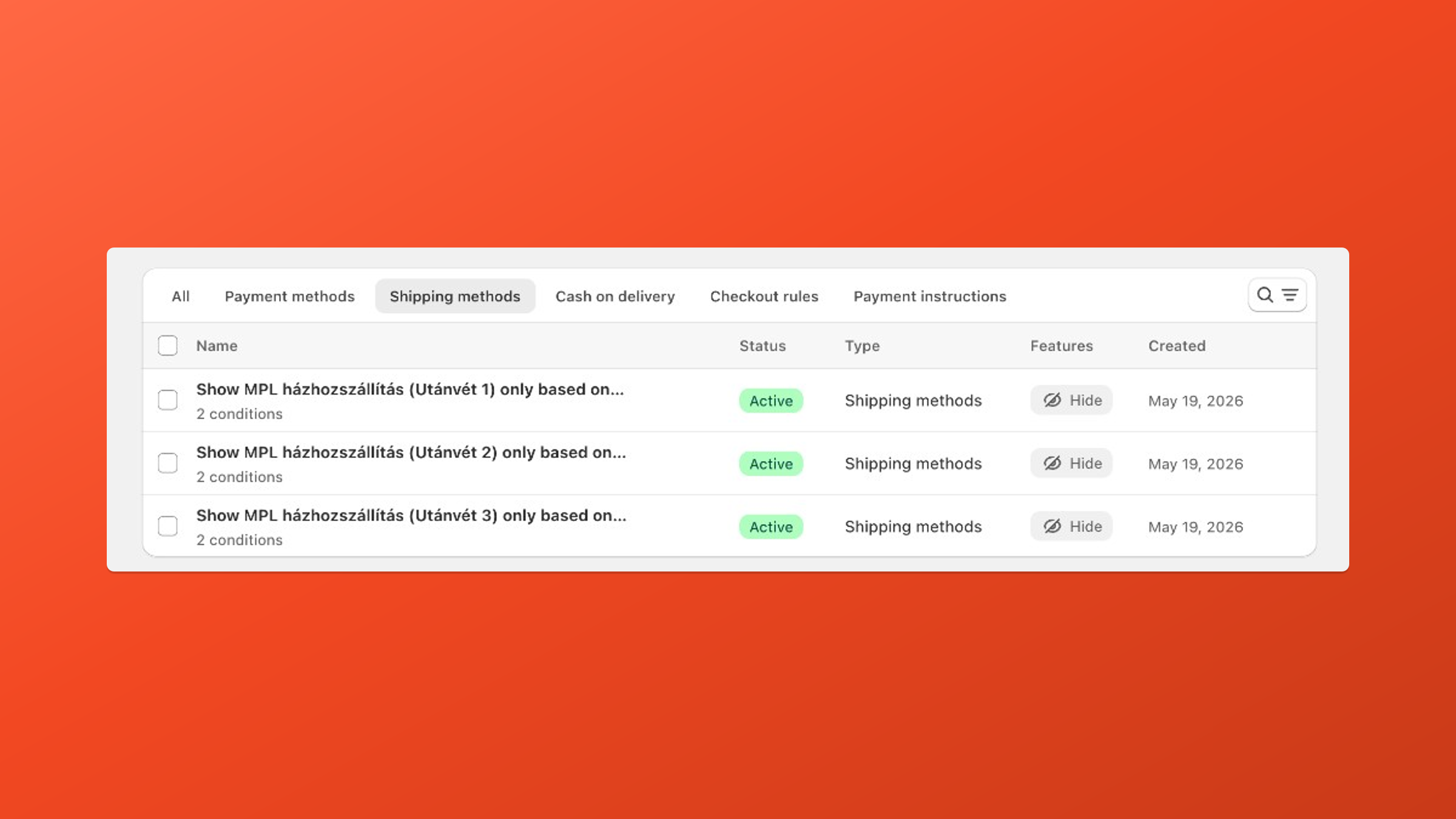
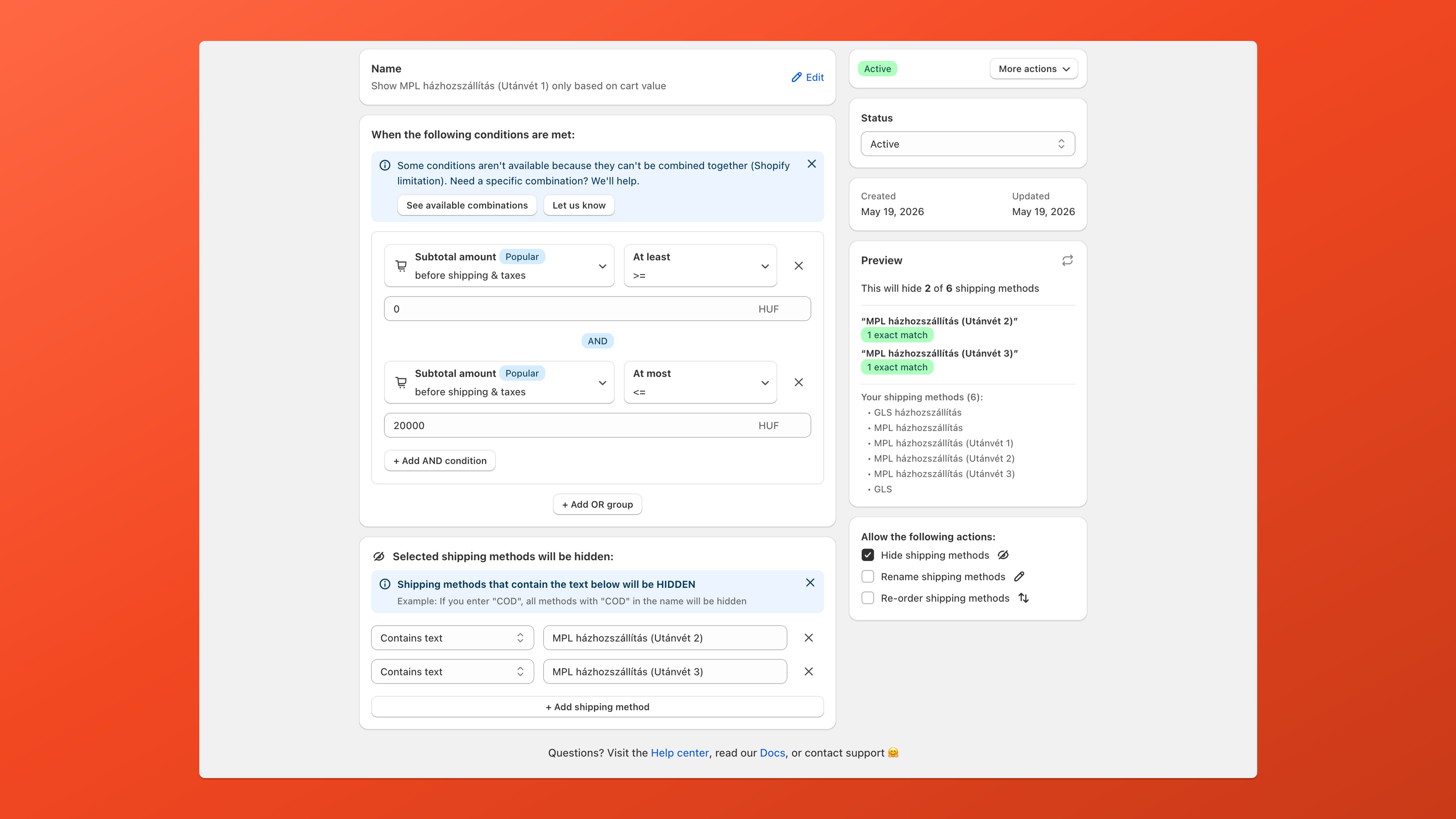
For bands 2 and 3, duplicate the same structure with the subtotal ranges and hide targets from the table above. You do not need separate screenshots for each — only the subtotal range and which Contains text targets change.
Step 4 — Test at checkout
Section titled “Step 4 — Test at checkout”- Open a real checkout (not only the admin preview).
- Prepaid path — select the standard Weight rate → COD payment should not appear.
- COD path — select the visible COD rate → only Cash on Delivery payment should remain.
- Change cart subtotal across your bands (e.g. 15,000 → 25,000 → 60,000) and confirm a different COD shipping line appears with the matching price.
- Change cart weight across bands and confirm the shipping price updates within the same visible COD option.
Maintenance tips
Section titled “Maintenance tips”- COD fee or weight price change — update the Price cells in every affected COD rate in Shopify; Payflow rules do not store amounts.
- New cart band — add a new COD rate (full weight table) and a new hide rule; update existing rules to hide the new label.
- New weight band — add a row to prepaid and to each COD copy, using the same surcharge per cart band.
- High order limits — use COD Restrictions or add subtotal hide rules above your maximum.
Alternative: Order amount on COD rates
Section titled “Alternative: Order amount on COD rates”If you have few weight bands, you can instead create one COD rate per weight band with Rate type → Order amount (cart tiers inside each rate) and use Payflow Total weight rules to hide the wrong weight band. That avoids duplicating full weight tables per cart band but means more cells in Order amount mode. See the tiered fees page for order-amount tier editing.
When this pattern is not a fit
Section titled “When this pattern is not a fit”| Situation | Better approach |
|---|---|
| COD fee is a single flat amount on all orders | One COD rate with one price — see COD Setup |
| COD fee scales only with cart total, shipping is flat | One COD rate, Order amount tiers only — see Tiered fees |
| You need live percentage math | Not available in Shopify shipping profiles; see Percentage fee FAQ |
| Many carriers × many weight × many cart bands | Consider fewer bands or a shipping app with formulas |